
Send a picture to another module
Move the picture you are working on between the Photo Editor, Develop, Portrait, Faceswap and Collage with Send to…, at full size, and what happens when it arrives.
The five modules of SnazzyFoto work together. With Send to… you take the picture you are working on to another module in one click — a developed photo to Portrait, a new background to the Photo Editor, a face swap to Collage — without saving and opening files in between.
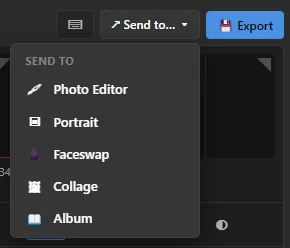 12
- 1 ↗ Send to… ▾ — the button. Develop, Portrait, Faceswap and Collage each have one.
- 2 The other modules — click one to open the picture there.
Where to find it
| Module | Send to… | What is sent |
|---|---|---|
| Photo Editor | Image › Send to › Portrait, Faceswap, Collage, Album or Develop | The whole picture, all visible layers merged |
| Develop | ↗ Send to… ▾ in the toolbar | The open photo with your settings, at full size |
| Portrait | ↗ Send to… ▾ in the toolbar | The portrait with its new background and face changes |
| Faceswap | ↗ Send to… ▾ at the bottom of the right column | The face-swap result (after Process) |
| Collage | ↗ Send to… ▾ above the collage | The finished collage |
Ctrl + E in Develop and Portrait sends straight to the Photo Editor, without the menu.
What happens in the other module
- Photo Editor — the picture becomes a new document. If a picture is already open there, it is added as a new layer on top instead. To get a document of its own, close the other one first (File › Close).
- Develop — opens as Image from another module. It is not a file, so it is not kept in the filmstrip and its settings are forgotten when you open another photo. Send or export it before you move on.
- Portrait — opens as the photo to work on, ready for a new background.
- Faceswap — becomes the target photo, the one that gets the new faces.
- Collage — fills the first empty frame. Without a layout yet, the two-photo layout is chosen; when every frame is full, the next layout with one frame more.
- Album (in the ↗ Send to… ▾ menu) — joins the photo album in Collage › Album and fills the first empty frame of the open page. See Photo albums for print.
Note
Sending always keeps the full size, also in the free version. The 2048-pixel limit of the free version applies only when a picture leaves SnazzyFoto (export, copy to the clipboard). See How the 2048 px limit works.
Ideas
- RAW portrait with a new background: develop the RAW file in Develop, then Send to… › Portrait.
- Cut-out person on a poster: in Portrait, choose a Transparent background, then Send to… › Photo Editor and add text and shapes around them.
- A face swap with better colour: in Faceswap, Send to… › Develop to even out the light.
- Before and after in one picture: send the original and the edited version to Collage, one after the other.
Next steps
Still stuck? Email snazzysoft.app@gmail.com with a screenshot.