
Install SnazzyFoto
Download SnazzyFoto, get past the Windows SmartScreen warning, open it for the first time, download the AI files, update to a new version and uninstall.
SnazzyFoto installs like any other Windows program: download the installer, run it, and SnazzyFoto appears in the Start menu and on your desktop. It works straight away, without an account or a licence key.
Download
- Open the Download page on this website.
- Under SnazzyFoto, click Download next to Windows. The page also shows the version number and the size of the file.
- Wait for the download to finish. The file is in your Downloads folder; its name starts with
SnazzyFoto Setupand ends with.exe.
The installer is small — about 150 MB — because the AI is not in it. The AI files are downloaded the first time you use a feature that needs them, and only once. Updates download only the app, not the AI again. See AI downloads below.
A Mac version is listed on the Download page only when one is available. If you see only Windows, there is no Mac version yet.
My browser says the file "isn't commonly downloaded". Is that a problem?
No. Browsers say that about new programs that few people have downloaded yet. Choose Keep (in Edge you may have to open the … menu next to the download first). Only download SnazzyFoto from this website.
Install
- Double-click the file you downloaded.
- If Windows shows a blue Windows protected your PC window, click More info, then Run anyway. See why Windows warns below.
- Click Next. The installer suggests a folder in your own Windows user, so you don't need an administrator password; click Browse… to choose another one. You can click Cancel on any page until the installing starts.
- Click Install. A progress bar shows how far it is. This only takes a moment.
- On the last page, leave Run SnazzyFoto ticked to open it straight away (or untick it), then click Finish.
The installer also puts a SnazzyFoto shortcut on your desktop and in the Start menu.
Why Windows warns: "Windows protected your PC"
Windows SmartScreen shows this warning for programs from a publisher it does not know yet. SnazzyFoto is not code-signed (signing needs a paid certificate), so Windows shows Unknown publisher. The warning does not mean something is wrong with the file.
- Click More info (the small link under the text).
- Click Run anyway, which appears at the bottom.
Only do this for a file you downloaded from this website's Download page. If you got a SnazzyFoto file anywhere else, delete it and download it again from here.
My antivirus stopped the installer or removed a file.
Some antivirus programs are careful with new, unsigned programs that contain many files, like SnazzyFoto's AI. If yours stopped the installer or put a SnazzyFoto file in quarantine, restore it or allow SnazzyFoto in the antivirus, then run the installer again (for an AI file, download it again — see AI downloads). Only do this for the installer from this website. If the AI tools later say something was not found, see Fixing common problems.
The first launch
SnazzyFoto opens in a big window that fills the screen. Later it opens the way you left it. The first thing you see is the Home screen.
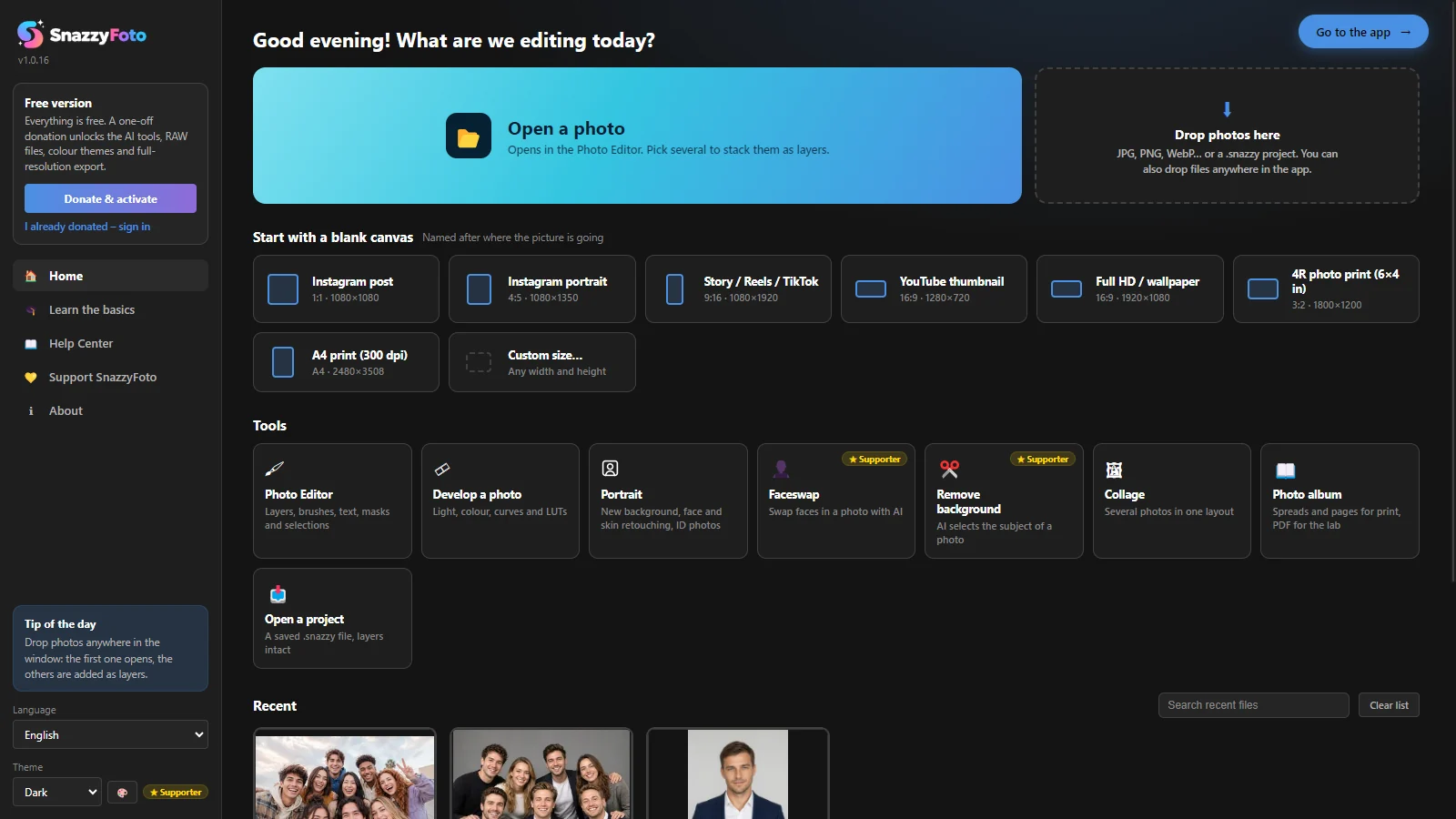
- From the Home screen you open a photo, start a blank canvas, jump to a tool or reopen a recent file. See The Home screen.
- SnazzyFoto starts in your Windows language if it is English, Bahasa Indonesia, Bahasa Melayu, Español or Filipino, and in English otherwise. Change it with the Language menu on the left of the Home screen, or the 🌐 button at the top. See Language.
- The top left of the Home screen says Free version. Everything on the Home screen works now; the Supporter tools are marked ★ Supporter.
AI downloads
The AI tools need extra files: the AI engine (the program that runs the AI) and the AI models (what the AI has learned). To keep the installer and the updates small, they are not in the installer. SnazzyFoto downloads them the first time you use a feature that needs them — and only the files that feature needs.
- Use an AI feature, for example open a RAW file, click Select Subject or start a face swap.
- If its files are not on this computer yet, the Download AI files window opens. It lists what is needed and how big it is.
- Click Download. A progress bar shows how far it is. When it is done, the feature carries on by itself.
Each file is downloaded only once. After that the feature works without the internet too. Cancel downloads nothing; the feature then doesn't run, and asks again the next time you use it.
| Download | What needs it | Size |
|---|---|---|
| AI engine | Every AI feature: RAW files, HDR merge, panoramas, Upright, auto-sort, Select Subject, Faceswap and the others | about 230 MB |
| Face detection | Faceswap, Portrait's face tools, auto-sort | about 170 MB |
| Faceswap model | Faceswap | about 490 MB |
| Face restoration model | Face restoration in Faceswap | about 480 MB |
| PyTorch (AI Denoise, face restoration) | AI Denoise, face restoration | about 100 MB |
| Remove with AI, panorama fill | Remove with AI, filling the edges of a panorama with AI | about 180 MB |
| Sky detection | Sky masks, Sky Replacement | about 25 MB |
| Subject selection | Select Subject, subject masks, Portrait's new backgrounds | about 55 MB |
| Depth map (Lens Blur) | Lens Blur, depth range masks | about 20 MB |
All together that is about 1.75 GB. With every AI download on the computer, SnazzyFoto takes about 3 GB on your disk.
Download everything at once
Going somewhere without internet — travelling, or a shoot on location? Download all the AI files beforehand, so every feature works offline:
- Click ℹ About at the top right of the window.
- Click AI downloads…. The list shows each download as Ready, Not downloaded or Update available.
- Click Download all. When everything says Ready, every feature works offline.
A download that stopped halfway (the connection dropped, the computer was switched off) continues where it stopped when you try again. Every file is checked before it is used, so a damaged download is never used.
The AI files are kept in your user's local app data folder, apart from the program. SnazzyFoto updates keep them, and uninstalling SnazzyFoto removes them. If a download fails, see Fixing common problems.
Update to a new version
SnazzyFoto tells you about new versions and, from version 1.0.10, installs them itself. A few seconds after it starts, it checks for a new version. When there is one, it asks A new version is available (…). Do you want to update? and shows what's new.
- Choose Update now. The update downloads in the background — usually only the parts that changed — and you can keep working; a small badge shows the progress.
- When it is ready, choose Restart & install. SnazzyFoto asks about unsaved work first, then installs the update and opens again by itself.
Later asks again the next time you start SnazzyFoto. Skip this version stays quiet until a newer version comes out. To check yourself, choose Help › Check for Updates… (also in the About box). Without an internet connection nothing is shown at start-up.
Your settings, your recent files, your Develop edits and presets, your AI downloads and your Supporter licence are kept. They are stored apart from the program, in your Windows user folder, which an update does not touch. Your photos and .snazzy projects are your own files, wherever you saved them, so they are not touched either.
Versions 1.0.2 to 1.0.9 tell you about the new version, but Update now opens the Download page instead: install it over the old one once, and from then on updates install themselves. Older versions, a Mac or the portable copy: download the new version from the Download page and run it over the old one — you don't have to uninstall first. (On a Mac, Update now opens that page for you.)
To see which version you have, look under the logo on the Home screen, or click ℹ About at the top right of the window.
Uninstall
- Open Windows Settings › Apps › Installed apps (on Windows 10: Apps & features).
- Find SnazzyFoto in the list. It is shown with its version number.
- Click … next to it (on Windows 10: click it), then Uninstall.
- The uninstaller opens: click Next. On the Uninstall options page, leave Clean uninstall unticked to keep your settings, or tick it to remove them too (see below). Then click Uninstall. A progress bar shows the files being removed, and the last page says when it is done.
Uninstalling removes the program and the AI files it downloaded. Your photos, exports and projects stay where they are. Your settings and licence stay on the computer, so they are still there if you install SnazzyFoto again.
To remove them too, tick Clean uninstall: it also deletes your settings, recent files, presets, caches and Supporter activation on this computer (never your photos, exports or .snazzy projects). If you're a Supporter, you can activate again later by signing in. This computer stays listed in your account until you unlink it under My devices — see Managing your computers. Version 1.0.10 and older have no such option: type %APPDATA% in the File Explorer address bar, press Enter and delete the snazzyfoto-faceswap folder.
Moving to a new computer? Install SnazzyFoto there and sign in with I already donated – sign in. If your donation is already used on the old computer, unlink that one first — see Managing your computers.