
Layer styles
Add a drop shadow, stroke, glow, bevel, overlay and more to a layer with the Layer Style dialog, use ready-made styles, save your own, and change or clear them later.
Layer styles add effects around the content of a layer — a drop shadow, an outline, a glow, a bevel and more. They follow the layer: move or change the layer and the style comes along. You can change or remove a style at any time.
Open the Layer Style dialog
Click the layer you want to style (text works especially well), then do one of these:
- Click fx, Layer style, at the bottom of the Layers panel and pick an effect.
- Choose Layer › Layer Style and an effect, or Blending Options….
- Right-click the layer › Blending Options…
- Click Layer Style in the Properties panel.
When you pick an effect by name, it is switched on straight away.
The dialog
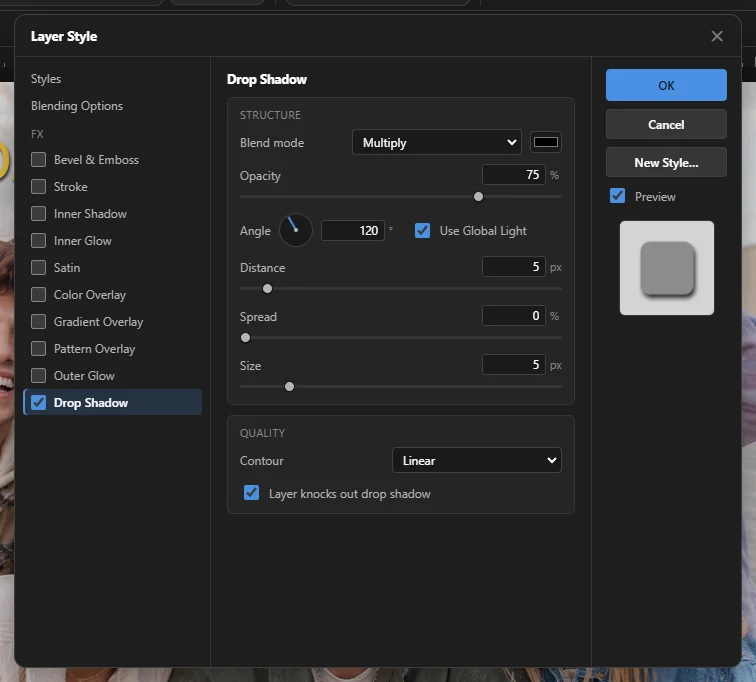 1234
- 1 The list — Styles (ready-made looks), Blending Options and the ten effects. Tick an effect's box to switch it on or off; click its name to see its settings.
- 2 Settings of the effect you clicked. Your picture updates while you change them.
- 3 OK keeps the style, Cancel puts everything back as it was, and New Style… saves your settings as a style of your own.
- 4 Preview — untick it to see the layer without the changes. The square below shows the style on a sample shape.
Enter is OK and Esc is Cancel. Drag the dialog by its title if it covers your picture.
The effects
| Effect | What it does and its settings |
|---|---|
| Bevel & Emboss | Makes the content look raised or pressed in, with light on one side and shade on the other. Style (Inner Bevel, Outer Bevel, Emboss, Pillow Emboss), Technique (Smooth, Chisel Hard, Chisel Soft), Depth, Direction (Up or Down), Size, Soften; and under Shading: the light's Angle and Altitude, Gloss contour, and the colour, blend mode and opacity of the highlight and the shadow. |
| Stroke | An outline around the content. Size, Position (Outside, Inside or Center of the edge), blend mode, Opacity, and Fill type: one Color or a Gradient. |
| Inner Shadow | A shadow inside the edges, so the content looks cut out. Colour, Opacity, Angle, Distance, Choke (how solid the edge is), Size (how soft), Contour. |
| Inner Glow | A glow along the inside of the edges, or from the middle (Source: Edge or Center). Technique (Softer or Precise), Choke, Size. |
| Satin | Soft, silky shading inside the content. Colour, Angle, Distance, Size, Contour, Invert. |
| Color Overlay | Paints the whole content one colour — an easy way to recolour text or a logo. Colour, blend mode, Opacity. |
| Gradient Overlay | Fills the content with a gradient. Choose a ready-made Gradient or set the start and end colours; Reverse, Style (Linear, Radial, Angle, Reflected, Diamond), Align with layer, Angle, Scale. |
| Pattern Overlay | Fills the content with a repeating Pattern (checkerboard, stripes, dots, grid, bricks, diamonds, waves or noise). Scale, Link with layer. |
| Outer Glow | A glow around the outside — try a bright colour on a dark background for a neon look. Technique, Spread, Size, Contour. |
| Drop Shadow | A shadow behind the content, so it seems to float. Colour, blend mode, Opacity, Angle, Distance (how far away), Spread, Size (how soft), Contour, Layer knocks out drop shadow. |
Many effects share these settings: blend mode and colour swatch (click it to pick a colour), Opacity, and Contour — the shape of the fade (Linear, Gaussian, Cone, Ring and others).
Global Light
Shadows and bevels have Use Global Light. When it is ticked, they all use the same light direction, so changing the angle on one changes it on all of them — your shadows and highlights stay consistent. You can also set the global angle and altitude under Blending Options.
Blending Options
Fill opacity fades only the layer's own content, while the effects stay fully visible. Set it to 0% to keep only a stroke or a glow, for example outlined text. The layer's opacity and blend mode are set in the Layers panel.
Ready-made and your own styles
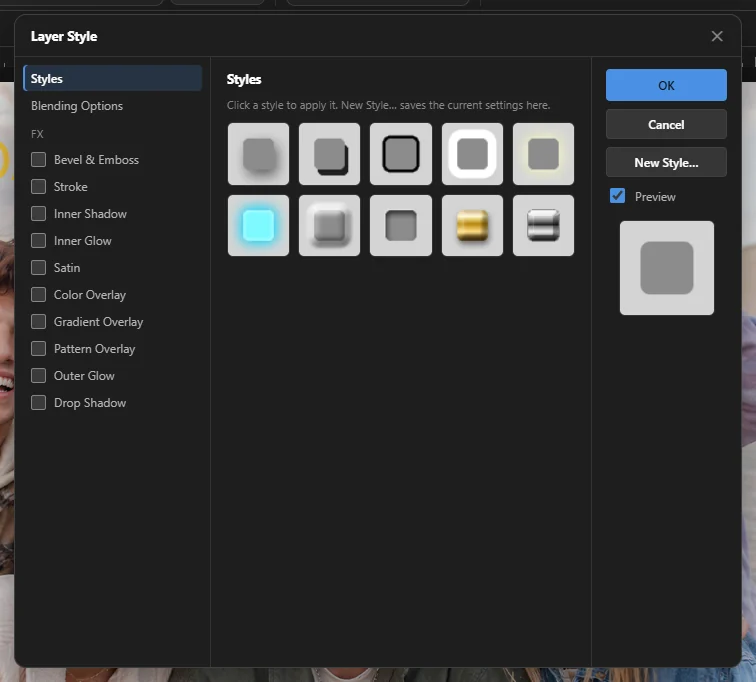
Click Styles at the top of the list, then click a style to apply it: Soft Shadow, Hard Shadow, Outline, Glow, Neon, Embossed, Gold, Chrome, Sticker or Pressed. Then fine-tune it with the effects.
- To save your own, set up the effects the way you like them.
- Click New Style…, type a Style name and click Save.
- Your style appears on the Styles page. Its ✕ deletes it.
Your own styles are kept on this computer, ready for any document.
Change or remove a style
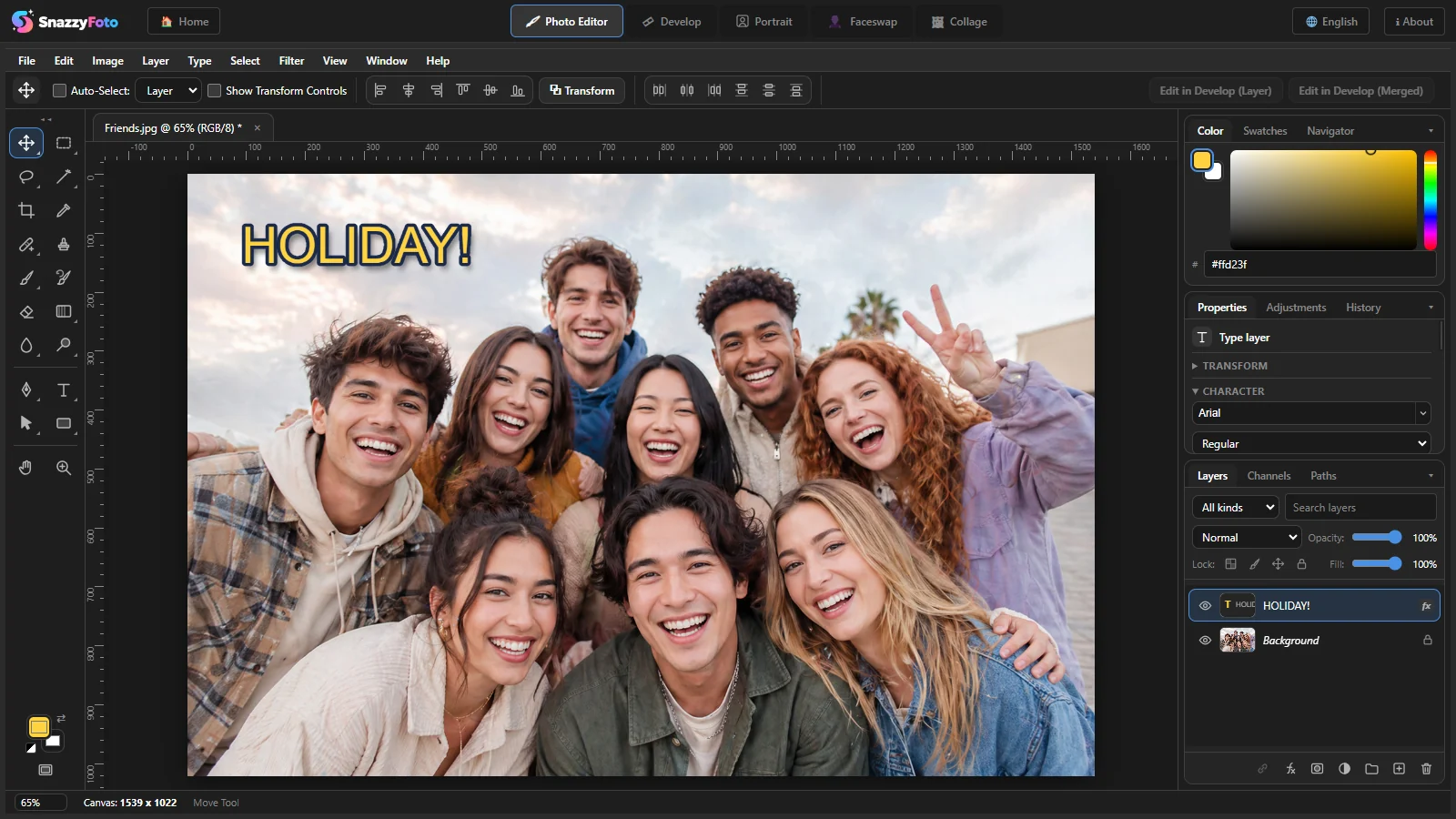 1
- A layer with a style shows 1 fx in the Layers panel. In Layer › Layer Style, the effects that are on have a tick.
- To change it, open the dialog again with any of the ways above.
- To remove it, choose Layer › Layer Style › Clear Layer Style.
Styles are saved in .snazzy projects and stay editable. When you export, they are included in the picture. Merging the layer turns the style into normal pixels.