
Portrait: new backgrounds
The Portrait module: open a portrait and give it a new background — blur, a colour for ID photos, a studio gradient, a sky, your own picture or transparent — with clean edges and matching light; export or send the result.
Portrait is the module for photos of people. Give a portrait a new background — blurred, a plain colour for an ID photo, a studio gradient, a sky or a picture of your own — and touch up the face. The AI finds the person for you, on your own computer.
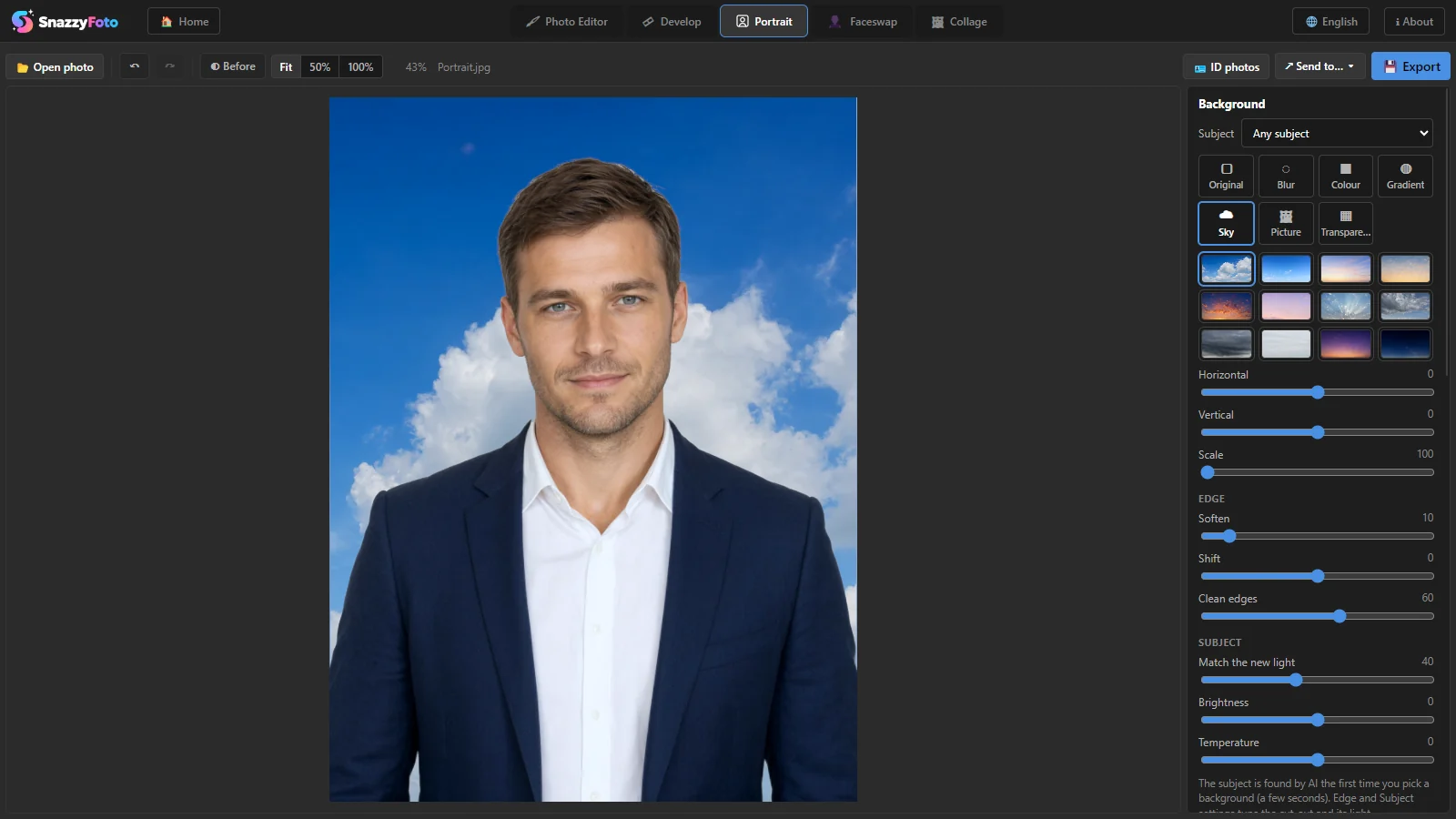 123456789
- 1 Open photo — opens a portrait (Ctrl + O).
- 2 ↶ / ↷ — undo (Ctrl + Z) and redo (Ctrl + Y).
- 3 ◐ Before — shows the photo as it was; click again to see your changes (\).
- 4 Zoom — Fit, 50% and 100%, then how far you are zoomed in and the file name.
- 5 ID photos — lays the photo out on a sheet of ID photos to print. See ID photos.
- 6 ↗ Send to… ▾ — takes the result to another module, such as the Photo Editor (Ctrl + E). See Send a picture to another module.
- 7 Export — saves the result as a new file (Ctrl + Shift + E).
- 8 The photo — always shows the result.
- 9 Background — the new background and how it blends in. Below it are the face tools; see Retouch a face.
Open a photo
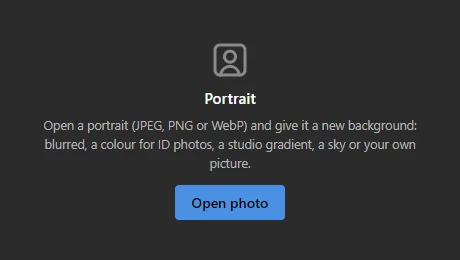
Click the Portrait tab at the top of the window, then Open photo. Portrait opens JPEG, PNG and WebP photos.
 1
Other ways in:
- Drag a photo from File Explorer and drop it on Portrait.
- From another module: ↗ Send to… ▾ › Portrait in Develop, Faceswap or Collage, or Image › Send to › Portrait in the Photo Editor.
A camera RAW file can't be opened here directly. Develop it first, then send it on with ↗ Send to… ▾ › Portrait (see Camera RAW).
Your original file is never changed. Portrait keeps your settings and undo steps only while the photo is open: opening another photo starts again from the beginning. Export or send the result before you move on.
Give it a new background Supporter
- Open a portrait.
- Under Background, click one of the kinds below. The first time, Finding the subject… appears while the AI cuts out the person; that takes a few seconds.
- The new background appears behind the person. Fine-tune it with its own settings, and the edge and the light with Edge and Subject (see below).
- Click Export to save the result, or send it on.
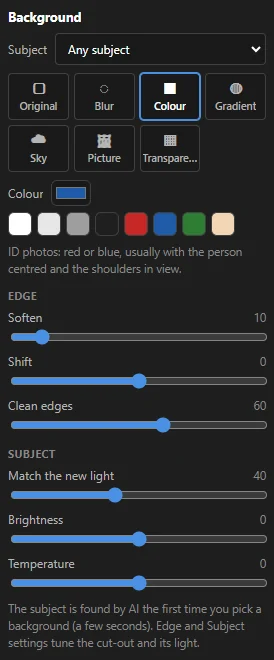 12345
- 1 Subject — what the AI looks for. Any subject (the default) finds people, pets or objects. People (fine hair) is made for people and keeps loose strands of hair better.
- 2 The kind of background (see the table below).
- 3 Its settings — here a colour, with quick colours to click.
- 4 Edge — how the cut-out meets the new background.
- 5 Subject — the light and colour of the person.
| Background | What you get | Settings |
|---|---|---|
| Original | The photo as it is (no AI needed). | — |
| Blur | The real background, softly blurred, like a camera with a big lens. | Blur amount |
| Colour | One plain colour, for example red or blue for an ID photo. | A colour picker and eight quick colours |
| Gradient | A studio backdrop that fades from one colour to another. | Colours and Style: Studio (radial) (light behind the head) or Top to bottom |
| Sky | One of the 12 skies that come with SnazzyFoto. | The skies, and Horizontal, Vertical and Scale to place it |
| Picture | A photo of your own; SnazzyFoto asks you to pick one. | Horizontal, Vertical and Scale |
| Transparent | No background at all (shown as a checkerboard). Export as PNG to keep it see-through. | — |
Edge
- Soften — makes the edge of the person softer. Raise it a little when the outline looks cut out.
- Shift — moves the edge inwards (to the left) or outwards (to the right). Move it left when a thin line of the old background shows around the person.
- Clean edges — takes the old background's colour out of hair and soft edges, so no grey or coloured glow is left on a new colour.
Subject
- Match the new light — gives the person a little of the new background's colour, so they look like they were photographed there. Shown for a colour, gradient, sky or picture.
- Brightness and Temperature — make the person lighter or darker, warmer or cooler.
Double-click a slider to put it back to where it started.
Zoom and move around
- Scroll the mouse wheel over the photo to zoom in and out at the mouse pointer.
- Drag the photo to move around when it is bigger than the window.
- Double-click the photo to switch between the whole photo and 100 %.
- Ctrl + 0 fits the photo, Ctrl + 1 zooms to 100 %, Ctrl + = and Ctrl + − zoom in and out.
Export or send the result
Click Export (Ctrl + Shift + E) and choose a name. The result is saved at full size as a JPEG or a PNG; the name ends in -portrait so your original is never overwritten. With a Transparent background it is always a PNG (a JPEG can't be see-through, so it would get white behind the person). Exported. appears when it is done.
To keep working on it — add text, put several people together, retouch by hand — use ↗ Send to… ▾ › Photo Editor or press Ctrl + E. A transparent background stays transparent there.
In the free version, export is limited to 2048 pixels on the long side, as everywhere in SnazzyFoto. See How the 2048 px limit works.
In the free version
You can open photos, zoom, compare, export, send and use the ID photo layout in the free version. A new background and the face tools need the AI and are Supporter features: clicking a background other than Original opens the Supporter feature window. See Free and Supporter.
Questions
There is a light or dark halo around the hair.
Raise Clean edges, move Shift a little to the left, or try People (fine hair) under Subject. A background close to the old one in brightness hides the rest.
The AI cut off part of the person, or kept part of the background.
Switch Subject to the other choice and look again. For full control, send the photo to the Photo Editor and use Select Subject and a mask you can paint on.
Can I use this to change the sky in a landscape?
Use Sky Replacement in Develop for that: it looks for the sky instead of a person.
"Finding the subject…" takes long, or a message says the graphics card can't handle the photo.
The AI runs on your computer's processor and needs a few seconds, a little more on older computers. Portrait draws with the graphics chip; a photo bigger than it can hold is worked on as a slightly smaller copy, and SnazzyFoto tells you so.