
Collage
Put two to six photos in one layout: pick a template, add photos, move and zoom them in their frames, set the ratio, gaps, corners and background, then export.
Collage puts two to six photos together in one picture. Pick a layout, drop your photos into its frames, set the gaps, corners and background, and export a JPEG. Collage is free.
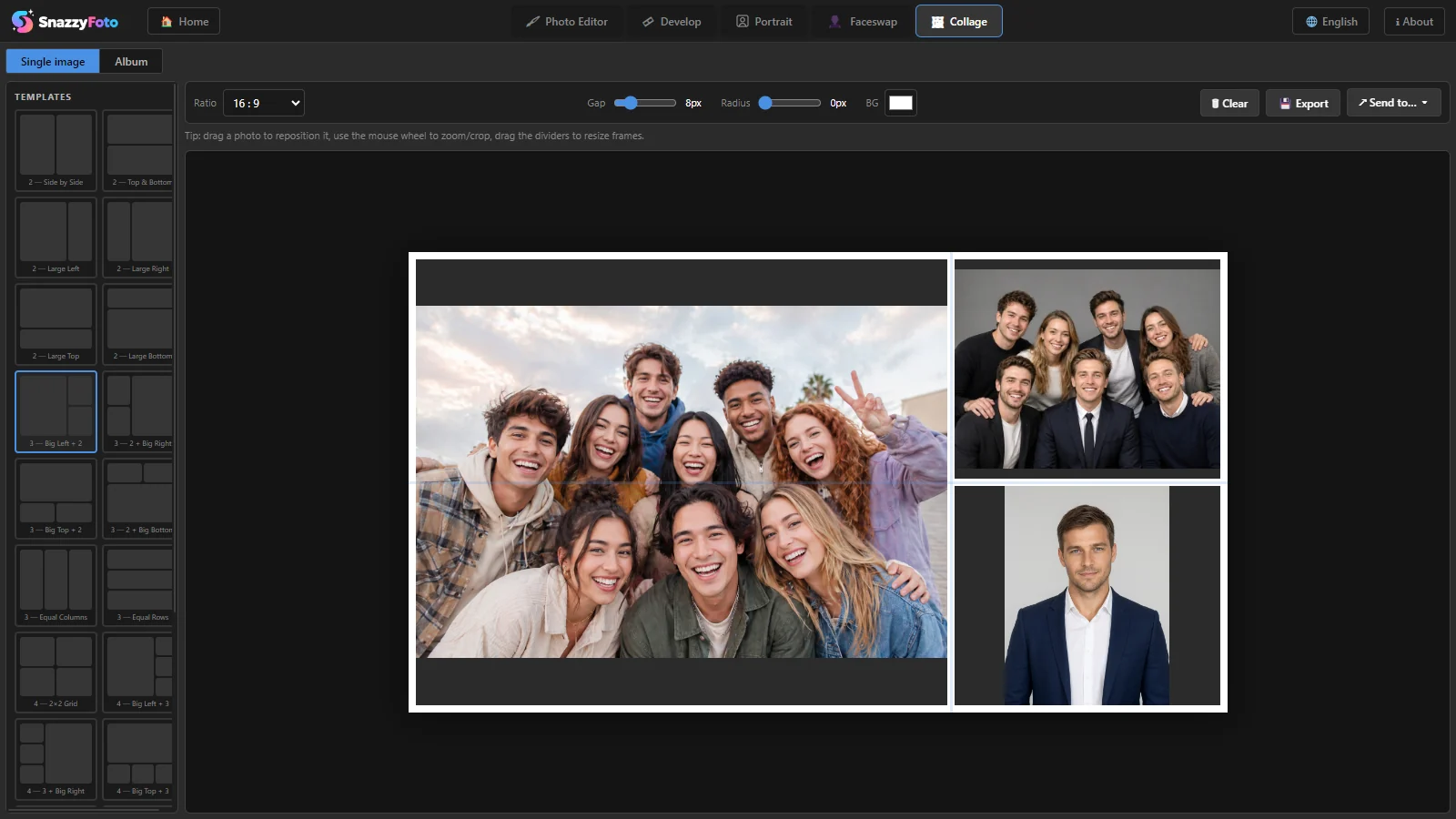
Make a collage
- Click the Collage tab at the top (or Collage under Tools on the Home screen). In the bar above the collage, Single image must be selected; Album designs a whole photo album for print instead (see Photo albums for print).
- Click a layout under Templates on the left. Its empty frames appear in the middle, each with a 📷.
- Click a frame and pick a photo for it (JPG, PNG, WebP, BMP or GIF). Do the same for the other frames.
- Move and zoom each photo in its frame until it looks right (see below).
- Click 💾 Export, choose a folder and a name, and click Save.
Pictures can also come from the other modules: ↗ Send to… ▾ › Collage (in the Photo Editor: Image › Send to › Collage) puts the picture in the first empty frame, and picks a layout with more frames when all are full. See Send a picture to another module.
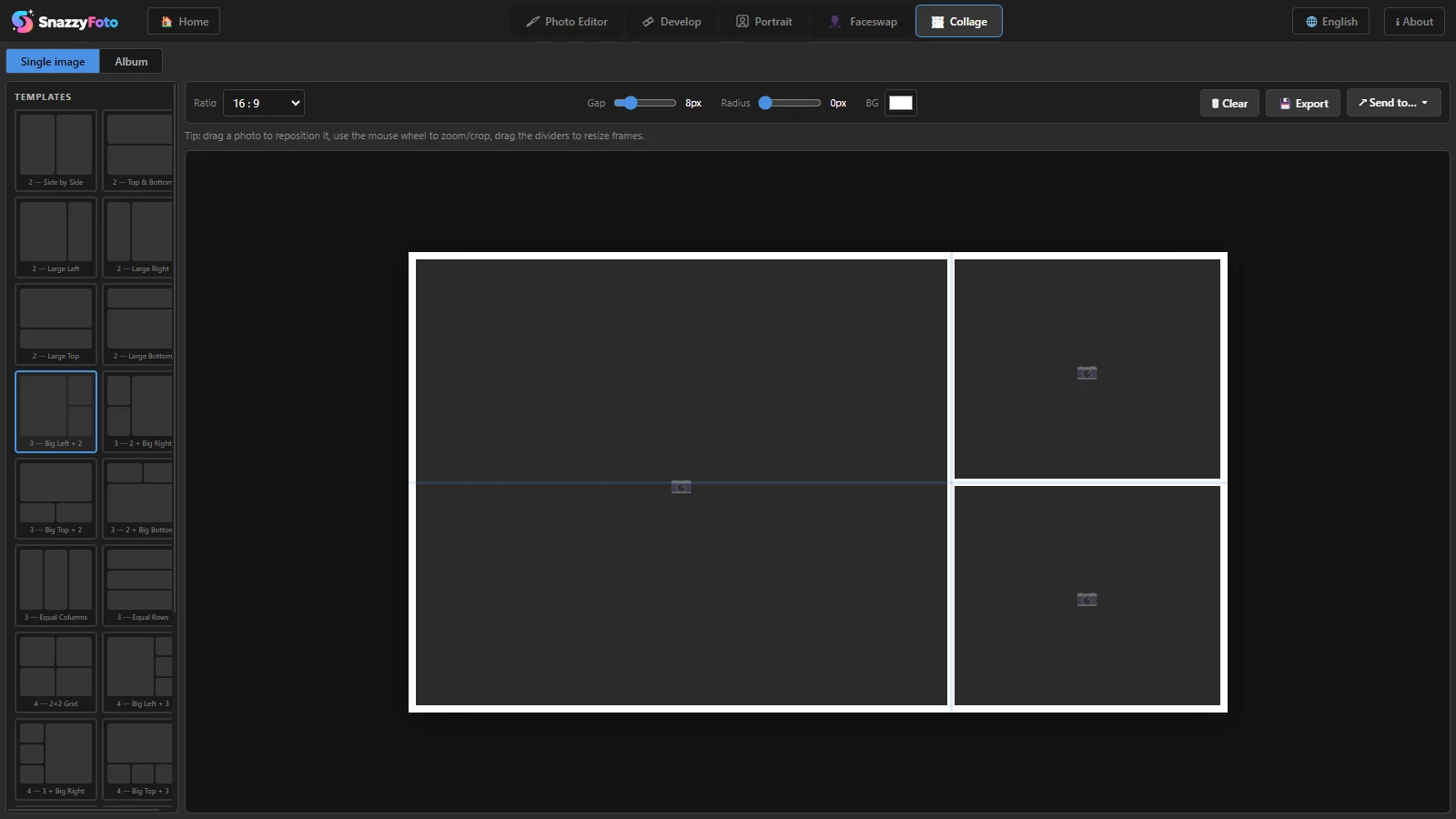 12
- 1 The chosen template, with a coloured outline.
- 2 An empty frame. Click it to add a photo.
The templates
The name of each template starts with how many photos it holds:
| Photos | Layouts |
|---|---|
| 2 | Side by Side, Top & Bottom, and one big with one small: Large Left, Large Right, Large Top, Large Bottom |
| 3 | One big with two small (Big Left + 2, 2 + Big Right, Big Top + 2, 2 + Big Bottom), Equal Columns, Equal Rows |
| 4 | 2×2 Grid, one big with three small (left, right, top, bottom), Single Row |
| 5 | Feature + 4, 2 Top + 3 Bottom |
| 6 | 2×3 Grid, 3×2 Grid |
You can switch to another template at any time. Photos stay in the frames the new template also has; photos in frames it doesn't have are taken out.
Move, zoom and resize
A photo first fits whole inside its frame, so you may see the background colour at two of its edges. To fill the frame:
- Zoom — point at the photo and turn the mouse wheel. Up zooms in, down zooms out.
- Move — drag the photo inside its frame. Whatever falls outside the frame is cut off in the collage.
- Resize frames — drag the divider between two frames. The frames on both sides grow and shrink together.
- Replace a photo — click it (without dragging) and pick another one.
The same tips are written in the line above the collage.
Shape, gaps, corners and background
 12345678
- 1 Ratio — the shape of the whole collage: Free (the shape of the space the collage has on screen; it follows the window when you resize it), 1 : 1 square, 4 : 3, 3 : 2, 16 : 9 (wide, the starting shape), and upright 3 : 4, 2 : 3 and 9 : 16 (for stories). Custom… shows two boxes for your own ratio, for example 5 and 4.
- 2 Gap — the space between the photos and around the edge, from 0 to 40.
- 3 Radius — rounds the corners of every frame, from 0 (square) to 40.
- 4 BG — the background colour that shows in the gaps. Click the square to pick a colour.
- 5 🗑 Clear — takes all photos out of the frames, at once and without asking. The template stays.
- 6 Free version: export max. 2048 px — shown in the free version only (see below).
- 7 💾 Export — saves the collage as a JPEG.
- 8 ↗ Send to… ▾ — opens the collage in another module, such as the Photo Editor.
Export
Click 💾 Export. In the Save image window, choose a folder and a name (it suggests collage.jpg) and click Save. The collage is saved as a high-quality JPEG, 2700 pixels wide; its height follows the Ratio. A 16 : 9 collage, for example, is 2700×1518, and a square one 2700×2700.
Fill every frame before you export. An empty frame comes out as a dark grey-blue box.
In the free version
The free version saves the collage at most 2048 pixels on its long side, keeping its shape: a 16 : 9 collage comes out at about 2048×1152, a 9 : 16 one at about 1152×2048. That is plenty for social media. A Supporter donation saves the full size. Click Free version: export max. 2048 px to read more, or see How the 2048 px limit works.
Carry on in the Photo Editor
↗ Send to… ▾ › Photo Editor opens the collage in the Photo Editor at full size, where you can add a title, stickers or a frame. If the Photo Editor already has a picture open, the collage is added to it as a new layer instead.
Collage does not save its layout as a file. It stays while SnazzyFoto is open, also when you switch to another module, but is gone after you close SnazzyFoto. To keep working on it later, send it to the Photo Editor and save a project there with File › Save.