
Auto-sort
Let the AI find blurry shots, closed eyes and the best of similar shots, decide Love it, Not sure or Skip, and turn your decisions into flags and labels. Supporter feature.
Came home with hundreds of photos? Auto-sort looks at every one of them: is it sharp, are eyes closed, is it far too dark or bright, and which of several similar shots is the best. It suggests Love it, Not sure or Skip for each photo. You decide, and SnazzyFoto turns your decisions into flags and labels. The analysis is a Supporter feature.
Open Auto-sort
- Add the photos to the filmstrip (for example with Folder).
- Press G, or right-click a photo and choose Auto-sort….
- The first time, the analysis starts by itself. The toolbar shows how far it is (… analysed); suggestions appear while it works.
Auto-sort works on all photos in the filmstrip, or only on the selected ones if you selected several. Press G or Esc (or click Close (G)) to go back to Develop.
The analysis runs on your computer, about ten photos per second; RAW files are read from their built-in previews. Nothing is uploaded. In the free version, Analyse opens a window about Supporter features; see Free and Supporter. Supporter
The Auto-sort screen
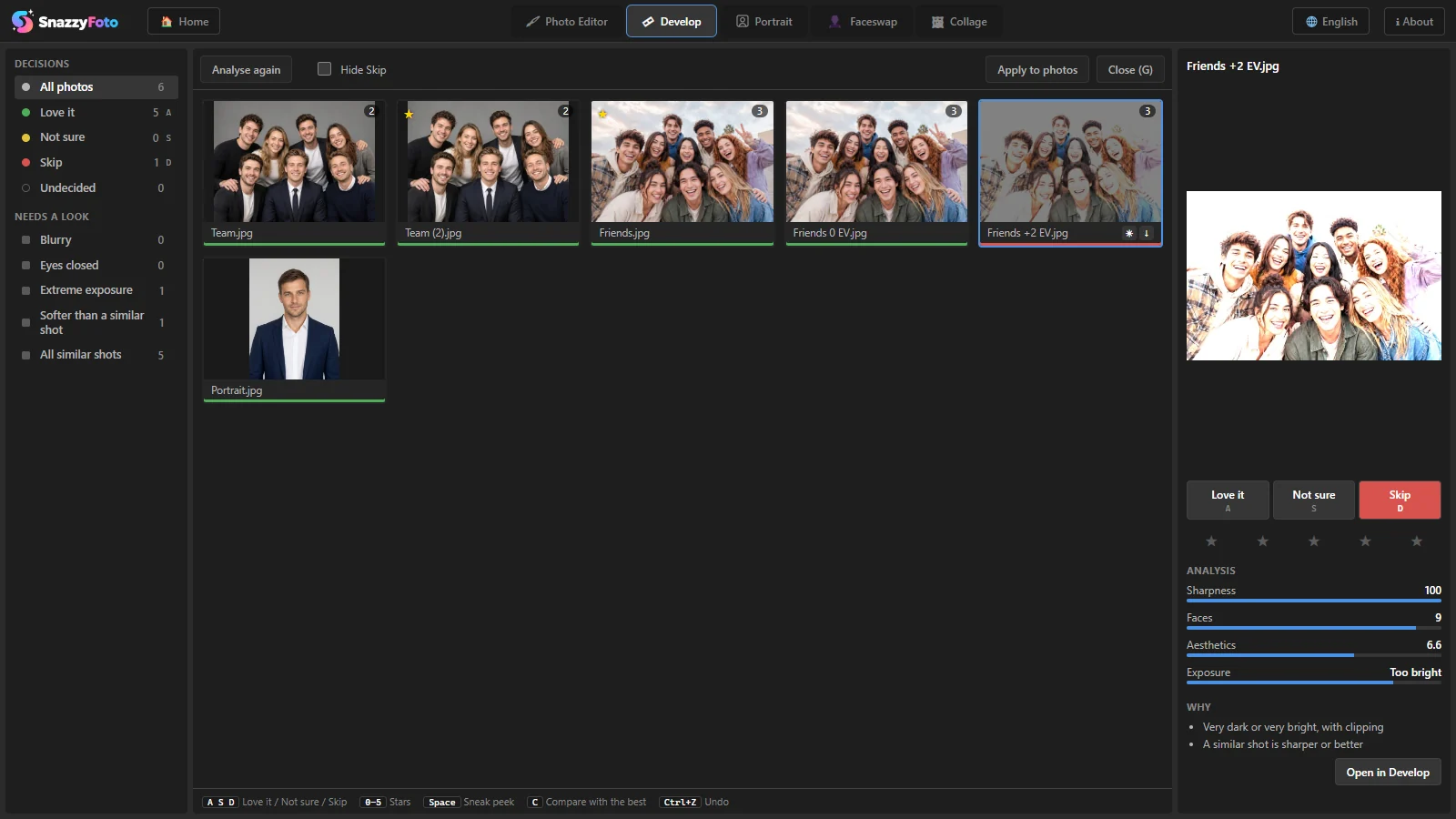 123456
- 1 Views — under Decisions: All photos, Love it, Not sure, Skip and Undecided. Under Needs a look: the photos with a possible problem (see the reasons). Each shows how many photos it holds.
- 2 Analyse — starts the analysis; Analyse again after you added photos; Stop while it runs. Hide Skip hides the photos marked Skip.
- 3 The photos — the coloured frame shows the decision. On similar shots, a number shows how many shots the group has, and a ★ marks the best of them. Small badges show possible problems.
- 4 Decide — Love it, Not sure or Skip for the selected photo, and its stars.
- 5 Analysis and Why — the scores and the reasons behind the suggestion.
- 6 Apply to photos — writes your decisions to the filmstrip (see below).
Go through the photos
Click a photo, or move with the arrow keys. Then:
| Keys | What they do |
|---|---|
| A · S · D | Love it · Not sure · Skip. The next photo is selected straight away. |
| 0–5 | Stars |
| Space | Sneak peek: the photo big. Space or Esc closes it. (Double-clicking a photo does the same.) |
| C | Compare with the best of its similar shots, side by side |
| Ctrl + Z | Undo the last decision |
| Enter | Open the photo in Develop (also Open in Develop in the side panel) |
Your own decisions always win: analysing again never changes a photo you decided yourself. Decisions are kept with each photo, so you can close Auto-sort and come back later.
How the suggestions are made
For each photo, Auto-sort measures:
- Sharpness — of the faces when there are any, otherwise of the whole photo.
- Faces — how many, and whether someone has their eyes closed.
- Aesthetics — a score out of 10 for how pleasing the photo is.
- Exposure — Good, Too dark or Too bright.
Photos that look alike and were taken within about a minute of each other form a group of similar shots. Copies of one photo with a slightly different crop, brightness or size count as similar too. The best of each group gets the ★.
| Needs a look | Means |
|---|---|
| Blurry | Not sharp (motion or focus). |
| Eyes closed | Someone has their eyes closed. |
| Extreme exposure | Very dark or very bright, with lost detail. |
| Softer than a similar shot | A similar shot is sharper or better. |
| All similar shots | Every photo that belongs to a group. |
The best of a group and sharp, well-exposed photos are suggested as Love it. Clearly blurry photos and weaker copies of a better shot become Skip. Everything in between is Not sure: those are the ones worth your own look.
Start with Not sure: it is usually the shortest list that needs a human decision. Then glance through Skip before you trust it.
Apply your decisions
Click Apply to photos. SnazzyFoto marks the photos in the filmstrip:
| Decision | Becomes |
|---|---|
| Love it | Flagged as pick |
| Skip | Flagged as rejected |
| Not sure | No flag, yellow colour label |
| Stars | The star rating |
Close Auto-sort and set the filmstrip Filter to Picked: only your keepers are left, ready to edit and export. See Edit many photos at once.
Auto-sort never deletes or moves files. Skipped photos stay on your computer; they are only flagged.