
Retouch a face
Portrait's face tools: the AI finds the face, then change its shape (eyes, nose, slim face, chin, lips), add make-up (lipstick, brows, eye liner, blush, eye colour) and smooth skin, whiten teeth and brighten eyes. A Supporter feature.
Portrait's face tools make small, natural changes to a face: a slimmer face or larger eyes, lipstick and blush, smoother skin, whiter teeth and brighter eyes. The AI finds the face for you; you only move sliders. Supporter
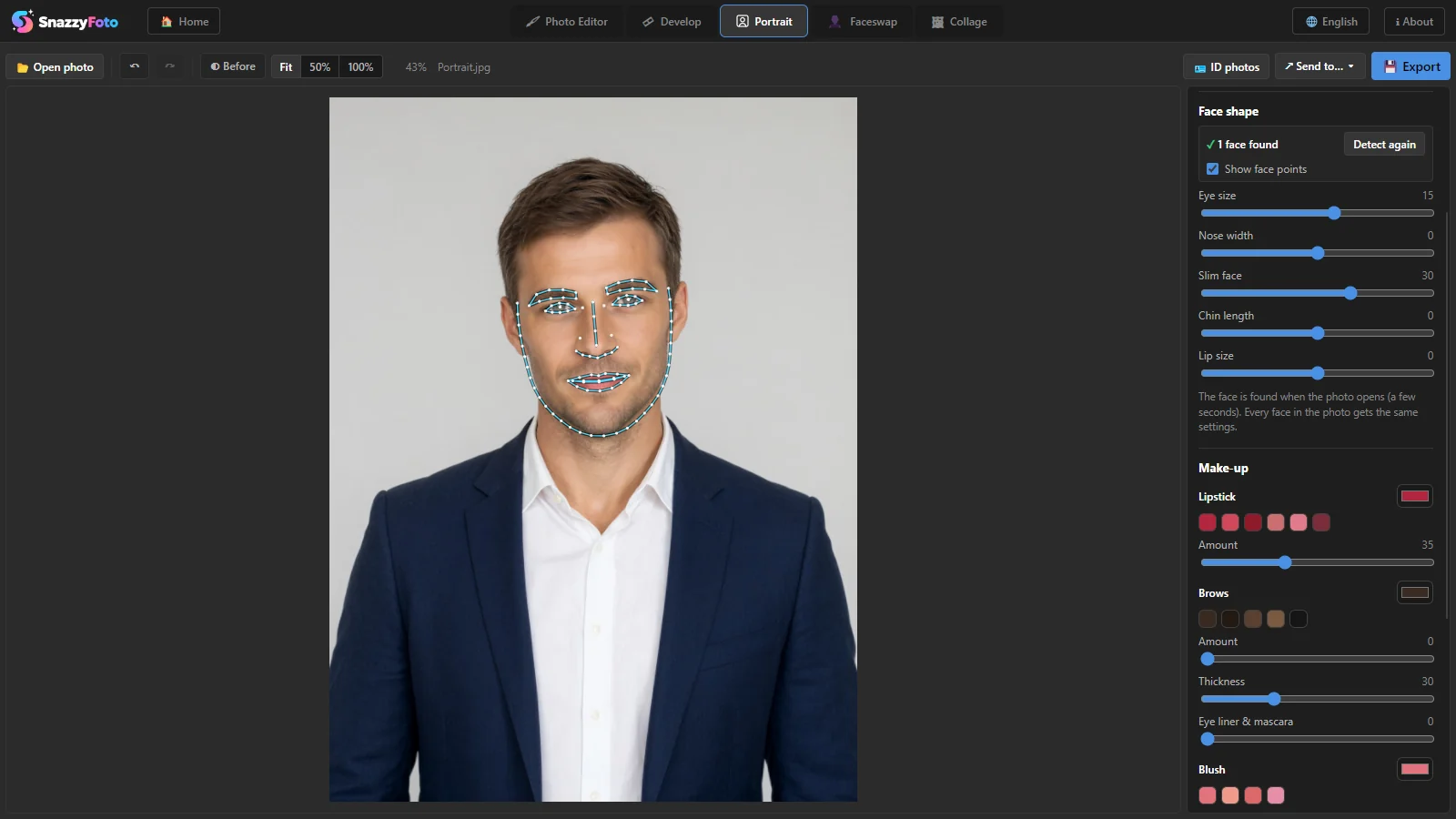 1234
- 1 The face status — how many faces were found, Detect again, and Show face points.
- 2 Face shape — five sliders for the shape of the face.
- 3 Make-up — lipstick, brows, eye liner, blush and eye colour.
- 4 Face points — the outline, brows, eyes, nose and lips the AI found.
Below Make-up, scroll down to Skin & eyes.
How the face is found
When a Supporter opens a photo in Portrait, SnazzyFoto looks for faces by itself. The first line of Face shape says Finding the face… and then, for example, 1 face found. For a moment the face points are drawn on the photo, so you can see what was found.
- Tick Show face points to keep them on screen while you work.
- Detect again looks once more, for example after the first try found nothing.
- Up to four faces are found. Every face gets the same settings, so in a group photo all of them change together.
- If no face is found, the status says No face found in this photo. and the sliders do nothing. Faces turned far to the side or partly hidden are hard to find.
Face shape
| Slider | To the right | To the left |
|---|---|---|
| Eye size | Larger eyes | Smaller eyes |
| Nose width | A wider nose | A narrower nose |
| Slim face | A slimmer jaw and cheeks | A fuller face |
| Chin length | A longer chin | A shorter chin |
| Lip size | Fuller lips | Thinner lips |
The new background (if you chose one) follows the new shape of the face.
Small values look natural. Compare with ◐ Before (\) now and then: if people can tell the face was changed, it went too far.
Make-up
Each item has a colour (click a quick colour or the colour box) and an Amount, which starts at 0 (none).
- Lipstick — colours the lips and keeps their shine and shadows.
- Brows — fills in the eyebrows. Thickness makes them fuller.
- Eye liner & mascara — darkens the upper lash line.
- Blush — a soft colour on the cheeks.
- Eye colour — changes the colour of the iris. The whites of the eyes stay white.
Skin & eyes
- Smooth skin — softens blemishes and fine lines on the skin, but keeps the eyes, brows, lips and the outline of the face sharp.
- Whiten teeth — makes the teeth whiter (only where the mouth is open).
- Brighten eyes — makes the whites of the eyes clearer.
Reset face at the bottom puts every face, make-up and skin slider back to the start. Your background stays as it is.
In the free version
The face tools are a Supporter feature. In the free version the status line says Face tools are a Supporter feature, and moving a slider or clicking Detect face opens the Supporter feature window. See Free and Supporter.
Questions
It says "No face found in this photo."
The face should be clearly visible and turned towards the camera. Very small faces in a big group photo may not be found either. Click Detect again to try once more.
Can I change only one face in a group photo?
Not in Portrait: every face gets the same settings. For one person, crop the photo to that person first, or retouch by hand in the Photo Editor.
Are my face settings saved with the photo?
No. Like everything in Portrait, they last until you open another photo. Export or send the result first.