
The Home screen
Open a photo, start a blank canvas in the right size, jump to a tool, reopen recent files and see your licence, all from the first screen.
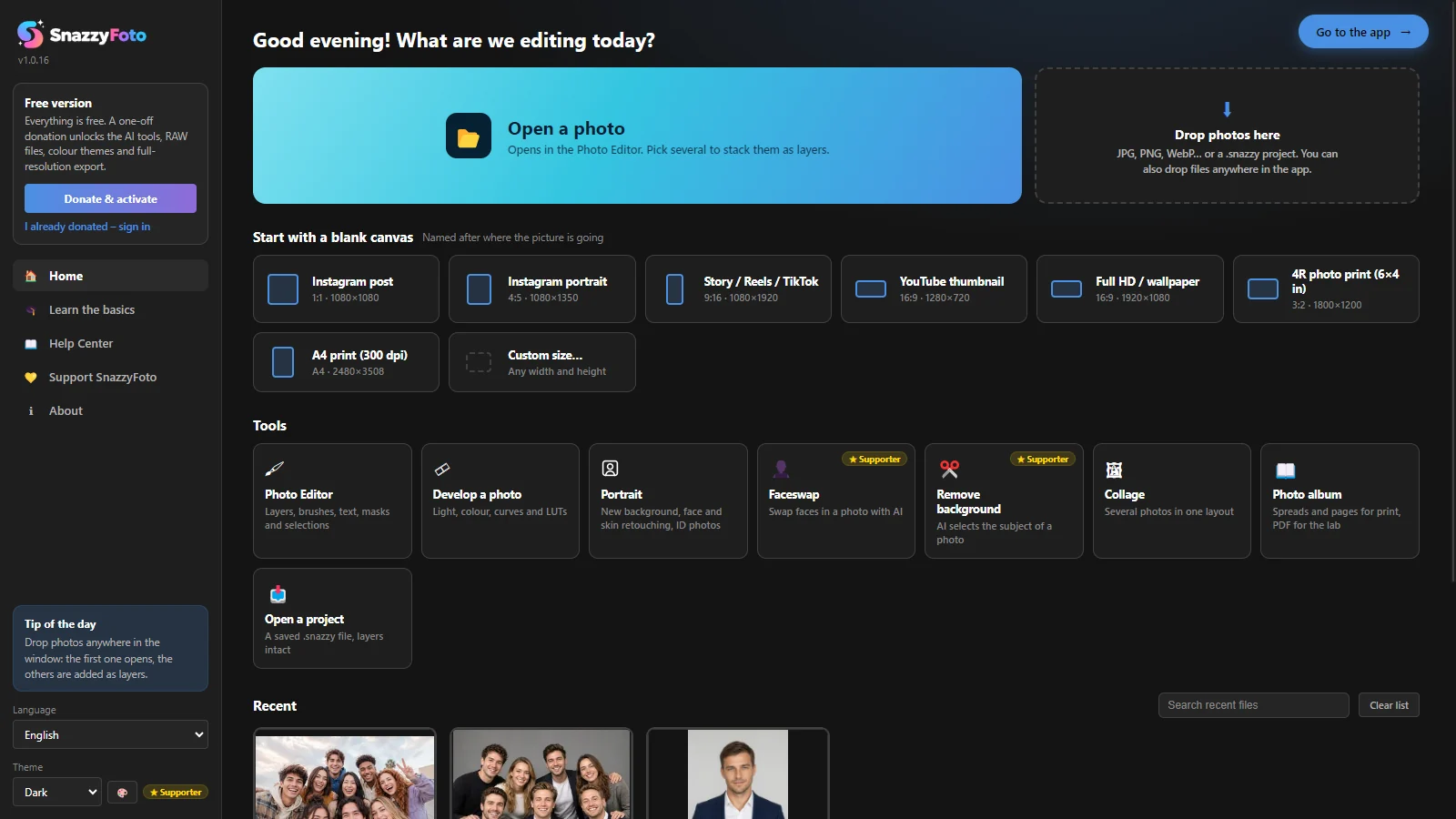
The Home screen is the first thing you see every time SnazzyFoto starts. From here you open a photo, start a blank canvas in the right size, jump straight to a tool, or carry on with a file you used before.
 123456789
- 1 Your licence — Free version with a button to donate, or ★ Supporter and your email.
- 2 Open a photo — opens a photo in the Photo Editor.
- 3 Drop photos here — drag photos from File Explorer onto it, or click it to pick them.
- 4 Start with a blank canvas — an empty picture in the size you need.
- 5 Tools — go straight to a module or an AI tool.
- 6 Recent — the photos and projects you used last, with a picture of each.
- 7 Help and your licence — Learn the basics, Help Center, Support SnazzyFoto and About.
- 8 Language and Theme — change them right here.
- 9 Go to the app — leaves the Home screen.
Open a photo
Click Open a photo (or press Ctrl + O) and pick a photo. It opens in the Photo Editor.
- Pick several photos at once to stack them: the first one opens, and the others are added on top of it as layers.
- You can also pick a
.snazzyproject. It opens with all its layers. - A camera RAW file (from Sony, Canon, Nikon and others) opens in Develop instead, because RAW files are developed there first. RAW files are a Supporter feature.
- If the Photo Editor already has a picture with unsaved changes, SnazzyFoto asks before it replaces it.
The big Drop photos here box does the same with drag and drop. Drag photos from File Explorer anywhere onto the Home screen; the screen says Release to open. JPG, PNG, WebP, BMP, GIF and TIFF photos and .snazzy projects work. Other files are ignored with a short message.
Dropping also works outside the Home screen: drop a photo on the Photo Editor to open it (or to add it as a layer when a picture is already open), on Develop to develop it, on Portrait to give it a new background, or on Faceswap to use it as the target.
Start with a blank canvas
For a poster, a thumbnail or a post made from scratch, start with an empty white canvas. The sizes are named after where the picture is going:
| Choice | Shape and size |
|---|---|
| Instagram post | 1:1 · 1080×1080 |
| Instagram portrait | 4:5 · 1080×1350 |
| Story / Reels / TikTok | 9:16 · 1080×1920 |
| YouTube thumbnail | 16:9 · 1280×720 |
| Full HD / wallpaper | 16:9 · 1920×1080 |
| 4R photo print (6×4 in) | 3:2 · 1800×1200 |
| A4 print (300 dpi) | 2480×3508 |
| Custom size… | Any width and height |
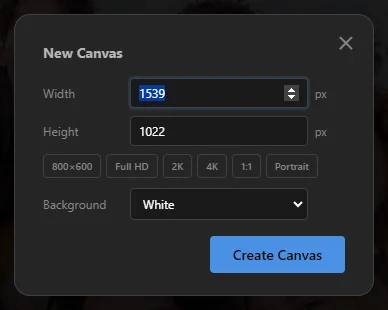
Click a size and the Photo Editor opens with the empty canvas. Custom size… (or Ctrl + N) opens the New Canvas window instead, where you type the width and height in pixels, pick a quick size, and choose a White, Transparent or Black background. Click Create Canvas.
 1234
- 1 Width and Height in pixels.
- 2 Quick sizes: 800×600, Full HD, 2K, 4K, 1:1 and Portrait.
- 3 Background — white, transparent or black.
- 4 Create Canvas — makes the canvas.
Tools
| Tool | What happens when you click it |
|---|---|
| Photo Editor | Opens the Photo Editor. |
| Develop a photo | Asks for a photo and opens it in Develop, to fix light and colour. |
| Portrait | Asks for a photo and opens it in Portrait, for a new background, face retouching or ID photos. It opens in the free version too; the new background and the face tools are Supporter features. |
| Faceswap | Opens Faceswap. Supporter |
| Remove background | Asks for a photo, opens it in the Photo Editor and lets the AI select the subject (the person or object in front). Supporter |
| Collage | Opens Collage. |
| Photo album | Opens Collage › Album, to design a photo album for print. |
| Open a project | Opens a saved .snazzy file with its layers (Ctrl + Shift + O). |
In the free version, the Supporter tools carry a ★ Supporter label. Faceswap still opens, so you can look around; the AI step asks you to donate first. See Free and Supporter.
Recent files
Under Recent you find the last 12 photos and projects you used, newest first, each with a picture. A label on each one says where it was opened — Photo Editor, Develop, Portrait, Faceswap or Project — and below it you see when you used it and its size in pixels. Click one to open it again in the same place.
- A file lands here when you open a photo in the Photo Editor, Develop or Portrait, open or save a project, or load a target photo in Faceswap.
- Type in Search recent files to find one by name or folder.
- Click ✕ on a picture to take it off the list (Remove from this list). Clear list empties the whole list after asking. The files themselves are never deleted.
- An entry marked File not found was moved or deleted. Open it from its new place with Open a photo.
Before you have used any files, the list says Nothing here yet.
Learn the basics
At the bottom, Your first edit in four steps explains the whole job in four cards: open, edit, let AI help, and export. Click Hide to remove the cards. Learn the basics in the side bar brings them back. For a full walk-through, see Your first edit.
The side bar
- Home scrolls back to the top. Learn the basics scrolls to the four steps.
- Help Center opens this Help Center in your browser.
- Support SnazzyFoto opens the licence window (see The Support SnazzyFoto window). About shows the version and the language.
- Tip of the day — a different short tip each day.
- Language — changes the language at once. See Language.
- Theme — picks a colour theme; 🎨 opens the Appearance window. Themes other than Dark are a Supporter feature. See Colour themes.
The account card at the top of the side bar shows your licence. In the free version it has Donate & activate and I already donated – sign in. As a Supporter it says thank you and shows the email of your account.
Leaving and coming back
- Go to the app (top right) or Esc closes the Home screen and shows the module you were in.
- To come back, click 🏠 Home or the SnazzyFoto logo at the top left of the window, or choose File › Home in the Photo Editor.
- Opening the Home screen does not close anything. Your picture in the Photo Editor and your photos in Develop are still there when you go back.