
Fixing common problems
Answers for playback that stutters, media offline, failed or smaller exports, SmartScreen, a theme back to Dark, AI Auto-Edit errors, lost work and HEIC photos.
Answers to the problems people run into most. Click a question to open it.
Playback and speed
Three tools above and below the monitor help when playback struggles:
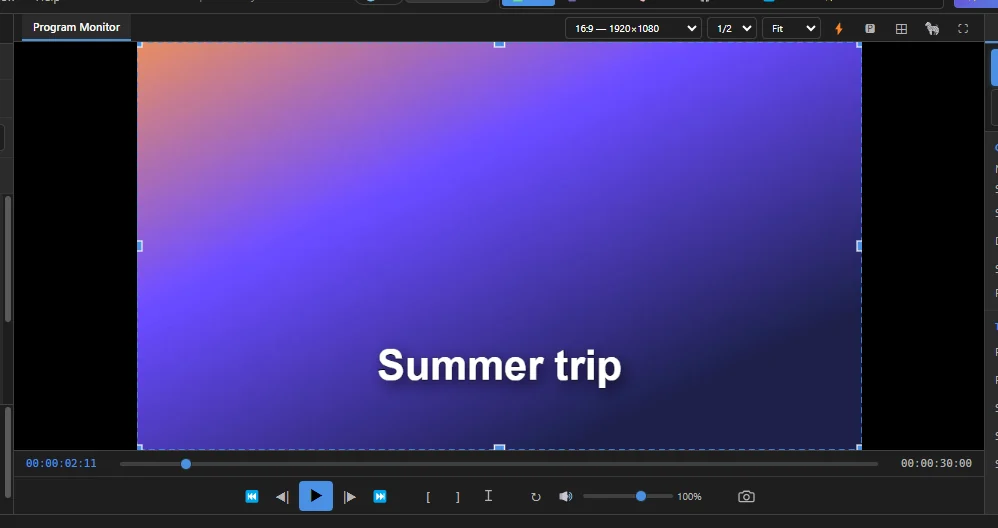 1234
- 1 Preview quality — Full, 1/2 or 1/4. Lower is smoother. It only changes the preview, never the export.
- 2 ⚡ Render Preview (Enter) — renders a ready-made preview of the timeline, so complex parts play smoothly. Right-click it for the cache options.
- 3 🅿 Proxy editing — click to switch it on or off, right-click for its settings.
- 4 Export Frame — saves the picture on screen (see Export a single frame).
The video will not play, stutters, or the monitor stays black.
Big or modern video files (4K, phone footage in HEVC) can be too heavy to play live. Try these in order:
- Set the preview quality above the monitor to 1/2 or 1/4. On a slower computer SnazzyCut already starts at 1/4.
- Turn on proxy editing: click 🅿 above the monitor, or choose Clip › Proxy Editing…. SnazzyCut makes small, easy-to-play copies of your videos (proxies) and plays those while you edit. A badge on the monitor shows them being built. The export always uses your original files, so the finished video is not affected.
- For a part with many layers or effects, press Enter (View › Render Preview). When the badge says Preview ready, that part plays smoothly. After you edit it, the badge says the preview is stale; press Enter again.
If the monitor shows a red MEDIA OFFLINE card instead of a picture, the file has moved — see the next question.
SnazzyCut feels slow.
- Use preview quality 1/2 or 1/4, proxies and Render Preview, as in the question above.
- Close other heavy programs, especially while exporting.
- The Minimal workspace shows fewer panels (see Workspaces).
In the free version, proxies and rendered previews are made at up to 720p, also for short videos. That keeps them light; it does not change your export settings.
Media and files
A clip says "MEDIA OFFLINE".
The project remembers where each video, photo and music file is. If a file was moved, renamed or deleted — or the project was opened on another computer — SnazzyCut cannot find it. The clip turns red, the monitor shows MEDIA OFFLINE, and the Media panel says how many files are offline.
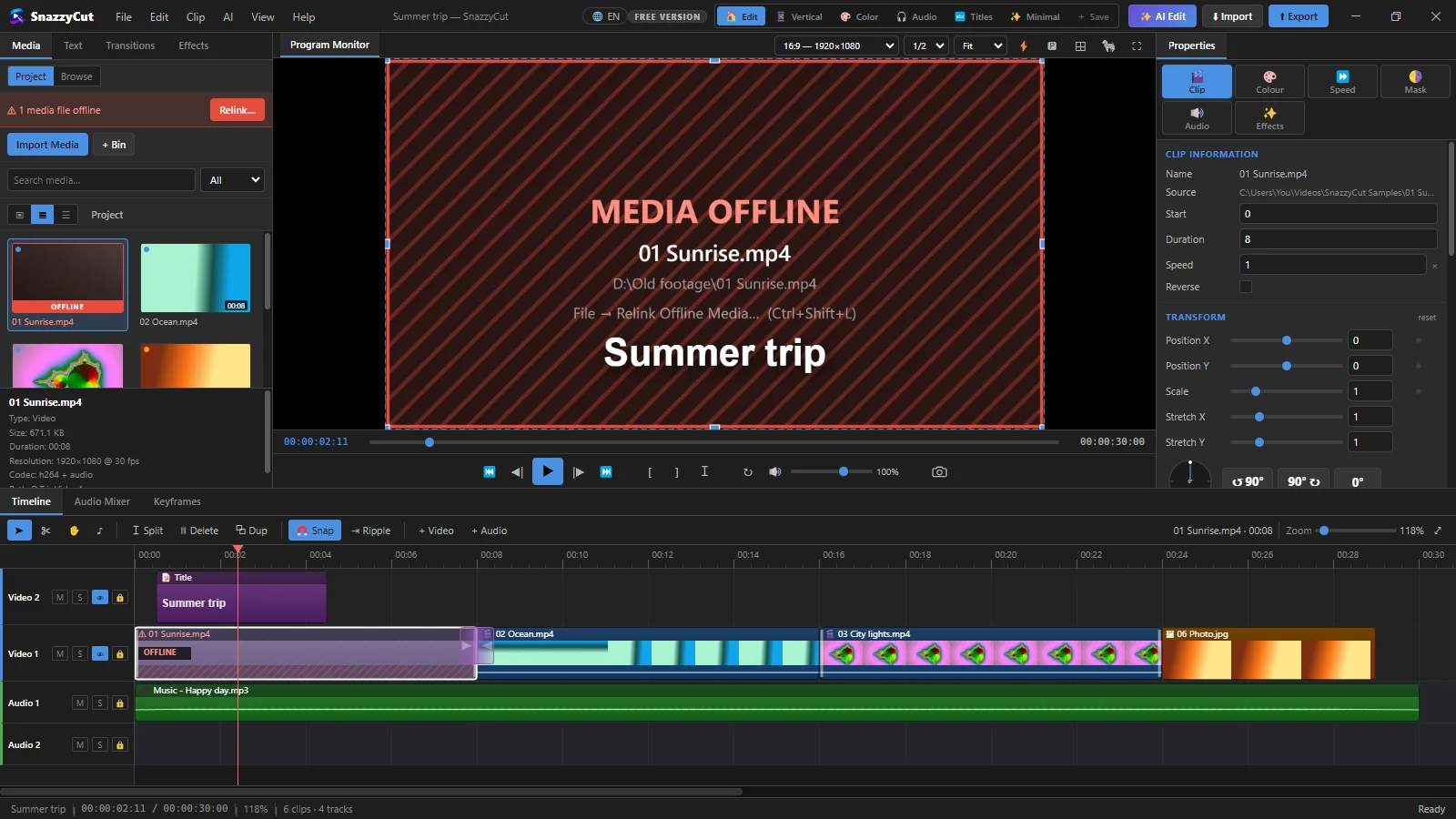 123
- Click Relink… in the Media panel, or choose File › Relink Offline Media… (Ctrl + Shift + L).
- Click 🔗 Locate a File & Find the Rest… and pick one of the files where it is now. SnazzyCut finds the others in the same folder.
- Save the project so the new places are kept.
More in Moving a project and relinking media.
My iPhone photos (HEIC) do not appear.
SnazzyCut converts HEIC and HEIF photos to JPEG by itself when you import them; the status bar says Converting … HEIC photos…. The copies are kept in SnazzyCut's data folder and your originals are not touched.
If it says a photo could not be read, save that photo as JPG and import the JPG. On an iPhone you can set Settings › Camera › Formats › Most Compatible so new photos are JPG, or share/export the photo as JPG.
SnazzyCut closed and my work is gone.
- A project you never saved: start SnazzyCut again. It shows Unsaved Work Found; click Recover, then File › Save As….
- A project you had saved: open the project. If your last changes are missing, open
name.autosave.scpfrom the same folder, then save it with Save As… over your project. - A project that will not open (damaged file): SnazzyCut opens the previous save (
name.scp.bak) by itself and says Recovered From Backup. Press Ctrl + S to restore the project file.
Autosave runs every 2 minutes unless you changed it in File › Autosave…. All details: Getting your work back after a crash.
Exporting
The export failed.
When FFmpeg (the engine that writes the video) stops with an error, SnazzyCut shows ⚠ Export Failed with its report.
- Click 📋 Copy Log. The whole report, with your SnazzyCut version and project size, is now on the clipboard. Paste it into an email or a note before you close the window.
- Check the common causes:
- The output file is open in another program (a video player, for example), or the folder cannot be written to. Choose another name or folder with Browse….
- The disk is full.
- Some media is offline. SnazzyCut warns you before the export starts; click Relink… there.
- Try again with Encoder set to Software (x264) — smallest files, and the format MP4 (H.264).
- Still failing? Send the copied log (see Where to get help).
My export is smaller than the size I chose (720p or 1080p).
The free version exports 720p for a video of any length, and 1080p for a video of up to 3 minutes (the shorter side at most 720 or 1080 pixels). If the title bar shows Free version, that is the reason: a video longer than 3 minutes comes out at 720p, and a shorter one at 1080p at most. A one-off donation unlocks full resolution — see What the free version exports and Free and Supporter.
If you have donated but still get a smaller size:
- Choose Help › Register…. If it does not say Supporter, click Sign in and use the account you donated with.
- Open the Export dialog again after activating, and check the Resolution: it may still be on the smaller size it was set to.
- Check File › Project Settings…: if the project itself is 1280×720, the export is too.
The exported video is shorter than my timeline.
An in point and an out point are set, so only the part between them is exported. The Export dialog says so; click Clear marks there, or press Alt + X in the editor. See Exporting only part of the timeline.
Windows and installing
Windows says "Windows protected your PC".
This is Windows SmartScreen. It warns about programs from publishers it does not know yet, and SnazzyCut is not code-signed. Click More info, then Run anyway. Only do this for a file you downloaded from the SnazzySoft website. More in Install SnazzyCut.
Double-clicking a project does not open SnazzyCut.
Choose File › Open .scp Files with SnazzyCut… and click Use This Copy. See Make .scp files open in SnazzyCut.
AI Auto-Edit
AI Auto-Edit says it is a Supporter feature.
AI Auto-Edit (and editing with Claude or Codex) is unlocked by a Supporter donation. Everything else stays free. See Free and Supporter.
"Add your API key in AI › AI Providers… first."
AI Auto-Edit uses your own account with an AI provider. Open AI › AI Providers…, choose a provider and add your key. The window explains how to get one (with OpenRouter you can connect in one click). See AI providers and API keys.
If it says The provider rejected the API key, the key was typed wrong or has been deleted: check it in the same window.
"Daily limit used up", "rate limit" or "out of credit".
- Daily limit used up — free plans allow a fixed number of requests per model per day. Wait for the reset (the message says when), pick another model, or turn on billing for your key.
- Rate limit — the provider allows only a few requests a minute. SnazzyCut already waits between requests; run it again and it continues where it stopped.
- Out of credit — add credit or check billing on the provider's website, then run again. Descriptions that were already finished are kept.
- A free model is selected — free models (“:free”) are shared by everyone and often busy. A cheap paid model is far more reliable.
How do I stop a run from stopping when the provider fails?
Set up a backup provider: in AI › AI Providers…, open the Backup tab and tick Use this backup when the main provider fails. When the main one is busy, hits a limit or gives errors, the run switches to the backup and carries on where it stopped. It can be another provider, or the same one with another API key. More in AI Auto-Edit.
Colour themes
My colour theme went back to Dark.
Colour themes other than Dark are a Supporter feature, so the free version shows Dark. Your choice is not lost: SnazzyCut remembers it and switches to it by itself as soon as this computer is activated. See Colour themes.
More help
Where can I get help?
- Search this Help Center: the search box at the top finds words in every article.
- The box at the bottom of each help page shows how to get more help.
- When you ask for help, include your SnazzyCut version (Help › About SnazzyCut), what you did and what happened, a screenshot, and for a failed export the log from 📋 Copy Log.