
AI Auto-Edit
Give SnazzyCut your folders and a description, get an editable first cut, then revise it in plain words.
AI Auto-Edit turns folders of footage, photos and music, plus a few words about the video you want, into a first cut on the timeline. The result is an ordinary, editable edit — not a finished file — so you can trim, reorder and export it like anything you made by hand, or ask the AI for changes in plain words. Supporter
Before you start
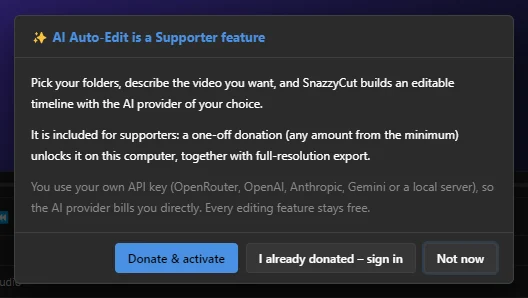
- It is a Supporter feature. A one-off donation unlocks it on your computer (see Supporter). In the free version the dialog explains this and offers Donate & activate.
- It uses your own AI provider. You add an API key from OpenRouter, OpenAI, Anthropic or Google Gemini — or use a model on your own computer — in AI › AI Providers…. The provider bills you directly; some offer free models. See AI providers and API keys.
- Put your material in folders. One folder (or more) with the clips and photos, and one with the music.
Open AI Auto-Edit
 12
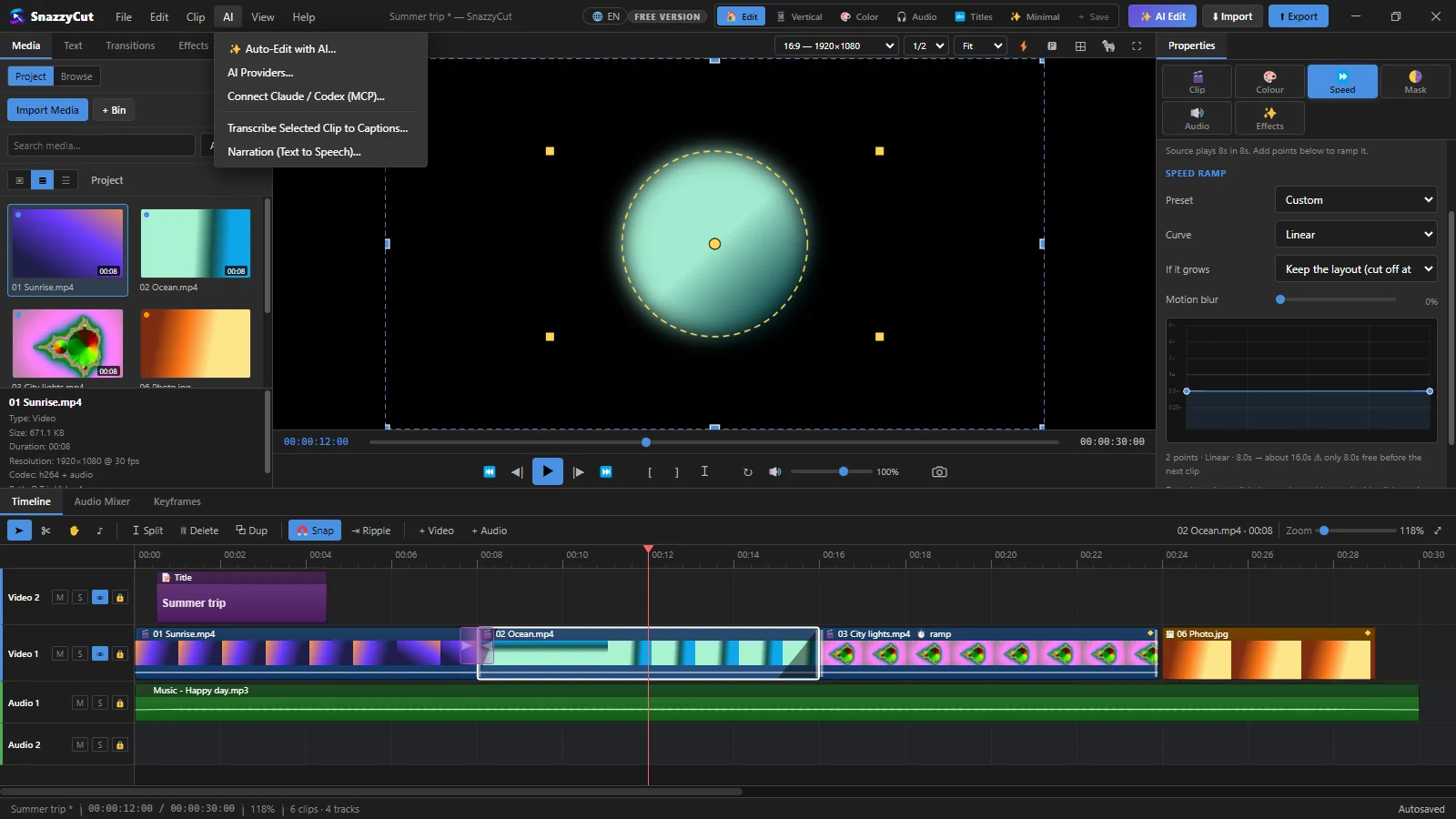
Choose 1 AI › Auto-Edit with AI…, click 2 ✨ AI Edit at the top right of the window, or pick AI Auto-Edit on the Home screen. The AI menu also holds the provider settings, Claude / Codex, captions and narration.
 12345678910
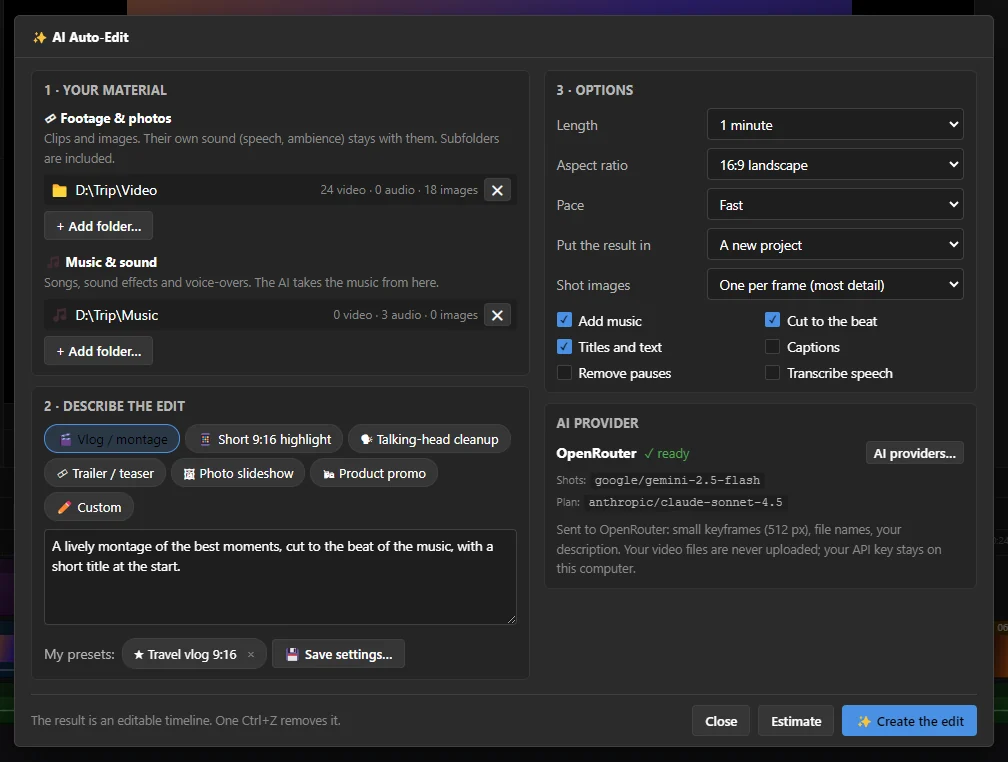
- 1 Footage & photos — folders with your clips and pictures.
- 2 Music & sound — folders with songs, sound effects and voice-overs. The AI takes the music from here.
- 3 Presets — ready-made starting points; one click fills in a description and the options.
- 4 The description — the video you want, in your own words.
- 5 My presets — your own saved settings, one click to load them again.
- 6 Options — length, shape, pace, where the result goes, and what to include.
- 7 AI provider — which provider and models will be used, and whether a key is set up.
- 8 What is sent to the provider (see Privacy).
- 9 Estimate — how much work (and roughly what it costs) before you start.
- 10 ✨ Create the edit — starts it.
The dialog remembers what you filled in, so next time it opens as you left it.
1 · Your material
Click + Add folder… under each list and pick a folder. Subfolders are included. Click ✕ on a folder to take it off the list (the files are not touched). Each folder shows how many videos, sounds and pictures it holds.
- 🎞 Footage & photos — clips and images. Their own sound (speech, ambience) stays with them.
- 🎵 Music & sound — songs, sound effects and voice-overs. Without a music folder the edit may have no music.
Put a folder that holds only music in the footage list by mistake? SnazzyCut moves it to Music & sound by itself.
2 · Describe the edit
Write the video you want as you would tell a friend who edits: how long, for where, what to start and end with, the mood. For example: "A 60-second travel montage of our Bali trip, upbeat, drone shots first, end on the sunset."
Or start from a preset. Clicking one writes an example description (if the box is empty) and sets the options to suit:
| Preset | What it makes |
|---|---|
| Vlog / montage | Energetic cuts on the music beat, 16:9, about a minute. |
| Short 9:16 highlight | TikTok / Reels / Shorts: a hook first, quick cuts, captions; upright, 30 seconds. |
| Talking-head cleanup | Removes pauses and filler words from a talk to camera, adds b-roll and captions. |
| Trailer / teaser | Builds tension with title cards, about 45 seconds. |
| Photo slideshow | Mostly photos, gentle transitions and music. |
| Product promo | Hero shot, benefits as text, a call to action; square. |
| Custom | Only your own description. |
My presets
Found settings you like? Click 💾 Save settings…, give them a name, and tick Also remember the folders if the folders belong to it too. The preset appears as a ★ button: click it to load everything again, or its × to delete it.
3 · Options
| Option | Choices |
|---|---|
| Length | Let the AI decide, or 15 seconds up to 5 minutes. |
| Aspect ratio | The shape of the picture: Match the project, 16:9 landscape, 9:16 vertical (phones), 1:1 square or 4:5 portrait. |
| Pace | Calm, Balanced or Fast — how quickly the shots change. |
| Put the result in | A new project, New tracks here, at the playhead, or One nested clip here, at the playhead (see Where the edit lands). |
| Shot images | One per frame (most detail), or Sheets of 9 (fewer tokens and requests): nine small pictures sent as one, which is cheaper and uses fewer requests — handy on a free tier. Small details such as signs or far-away faces can read less well. |
And the ticks:
- Add music and Cut to the beat — a music bed from your music folder, with cuts on its beat.
- Titles and text — titles and text callouts.
- Transcribe speech — Whisper writes down what is said, on your computer, so the AI knows what people say. It needs a Whisper model; download one once in Captions from speech.
- Captions — subtitles from the speech (needs Transcribe speech).
- Remove pauses — cuts silences out of speech.
The AI provider box shows the provider, the model that looks at the shots and the one that plans the edit. AI providers… opens the settings. A warning appears when a free model is chosen (free models are often busy) or when a model's daily limit is used up.
Check the estimate
Click Estimate before a big run. SnazzyCut reads the folders and tells you:
- how many video, audio and image files it found, and how many shots;
- how many keyframes (small still pictures) will be described — shots described in an earlier run are not sent again;
- about how many tokens that is in total, and a rough cost from the provider's published prices (when the provider publishes them, as OpenRouter does);
- about how many requests each model will get, and whether that is more than a daily limit the provider has reported for your key.
It also says how many files it could not read and left out, so nothing goes missing without you knowing.
Reading a folder the first time takes a while: SnazzyCut finds the shots in every video. It remembers the result, so the next run over the same folders is quicker and needs fewer tokens.
Create the edit
- Click ✨ Create the edit. If no API key is set up yet, the AI providers settings open first.
- Watch the progress. Each stage has a bar, a count and a clock: Reading the folders, Looking at the shots, Planning the edit, Checking the plan, Building the timeline. Under it, the last thing that happened and how long ago.
- When the provider asks SnazzyCut to slow down, the stage counts down (provider's rate limit — continuing in 23 s) and carries on by itself.
- When it is done, the dialog shows the title, length and size, a short summary, what was made, and the tokens (and cost) used.
Cancel stops it at any point. The Activity log under the progress lists every request with its time — what was sent, how long the answer took, every wait and why. Copy copies it, for example to ask for help.
When it stops
If something goes wrong — the key is refused, the account is out of credit, a daily limit is used up — a Why it stopped box says what happened, how far it got, when a limit resets and what to do, with the provider's own message underneath. Nothing done so far is lost: shot descriptions are saved, so Try again carries on from where it stopped. A backup provider can take over by itself (see Backup provider).
Where the edit lands
| Put the result in | What happens |
|---|---|
| A new project | A new project in the size of the edit. If the open project has unsaved changes, SnazzyCut asks about saving them first. |
| New tracks here, at the playhead | The edit is added to the open project on new tracks, starting at the playhead. |
| One nested clip here, at the playhead | The whole edit as one nested clip (a clip with its own timeline inside), at the playhead. |
The edit's files go into a bin named AI Auto-Edit in the media panel. Its tracks are named after what they hold: AI Video, AI Titles 1, AI Overlay 1, AI Music 1, Captions and so on.
One Ctrl + Z removes the whole AI edit, imported files included.
On new tracks or in a nested clip, the edit has to use the project's size. If you chose another aspect ratio and the timeline already has clips, SnazzyCut asks: keep the project's size, make a new project, or change the project to the new shape.
Revise it in your own words
 12345
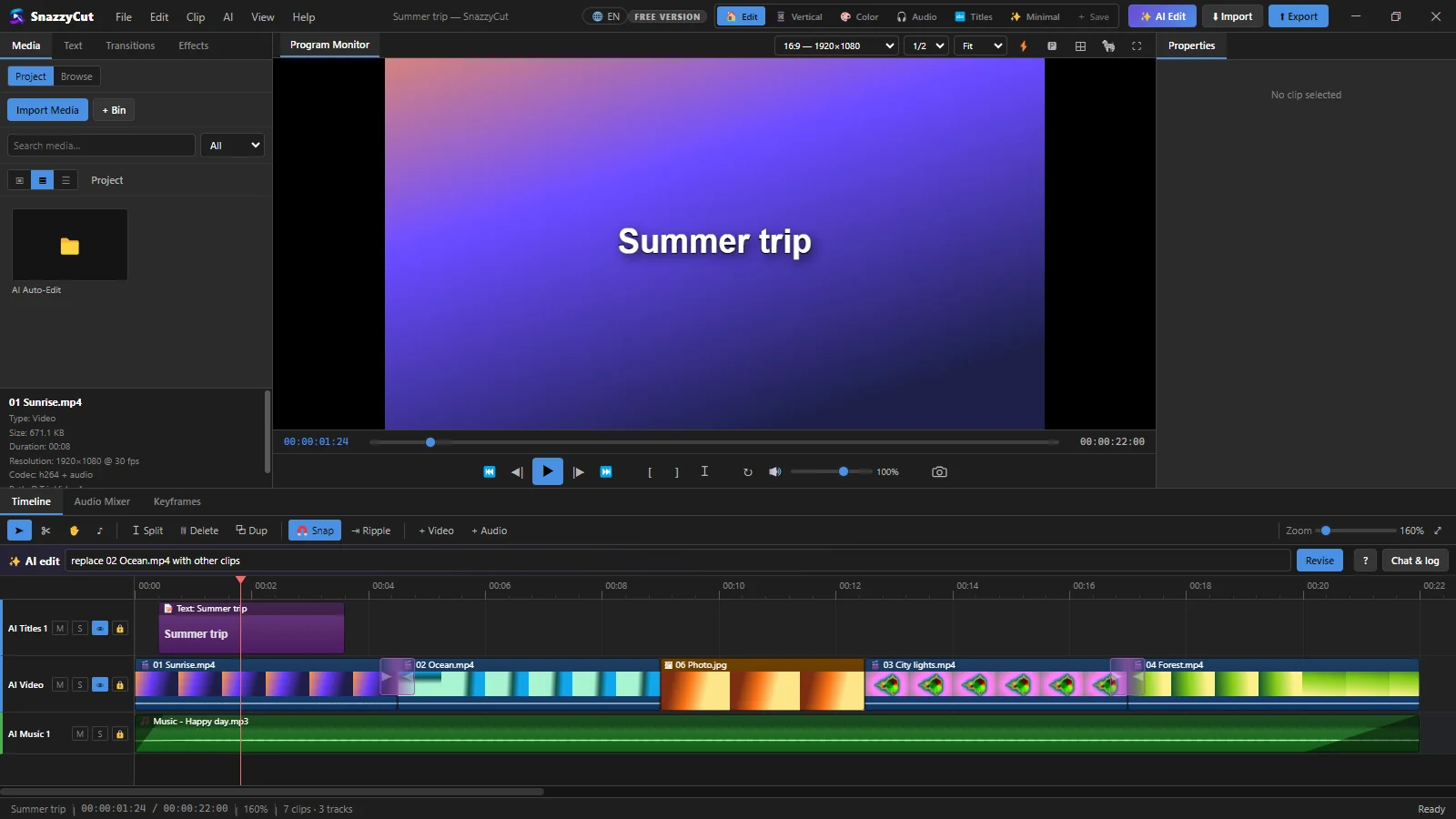
- 1 The AI tracks: the main video track, titles and music.
- 2 ✨ AI edit — type a change here. The bar appears in any project that has an AI edit.
- 3 Revise (or Enter) — sends it.
- 4 ? — examples of what you can ask.
- 5 Chat & log — opens the dialog with the whole conversation, the activity log and the settings.
Each revision replaces the AI edit with a new version as one undo step — Ctrl + Z goes back to the previous one. The bar then says what changed, for example "removed 02 Ocean.mp4; added 04 Forest.mp4", or no clips changed.
Name clips by file name, by position ("the third clip"), by time ("the clip at 0:12"), or select them on the timeline first and write "replace these". Any of the app's languages works. Some examples:
| To… | Type for example |
|---|---|
| Replace a clip | replace IMG_1315.MOV with other clips · replace IMG_1315 with IMG_1400 · replace these (with clips selected) |
| Remove a clip | delete the third clip · remove the last clip |
| Choose shots | start with the plane shot · use IMG_1400 · fewer photos · end on the sunset |
| Length and pace | make it 30 seconds · faster cuts · a calmer intro |
| Music | use Music2.mp3 · replace Music1.mp3 with Music2.mp3 · make the music as long as the edit · music volume 40% · no music |
| Clip sound | mute the original sound · keep the original sound |
| Text | change the title to "Bali 2026" · no titles · add captions |
| Shape | make it vertical (9:16) · make it 16:9 · make it square |
| Framing | reframe the third clip to the left · zoom in on IMG_1382 · show the whole frame of IMG_1382 · reframe IMG_1382 so the monitor on the dashboard is seen |
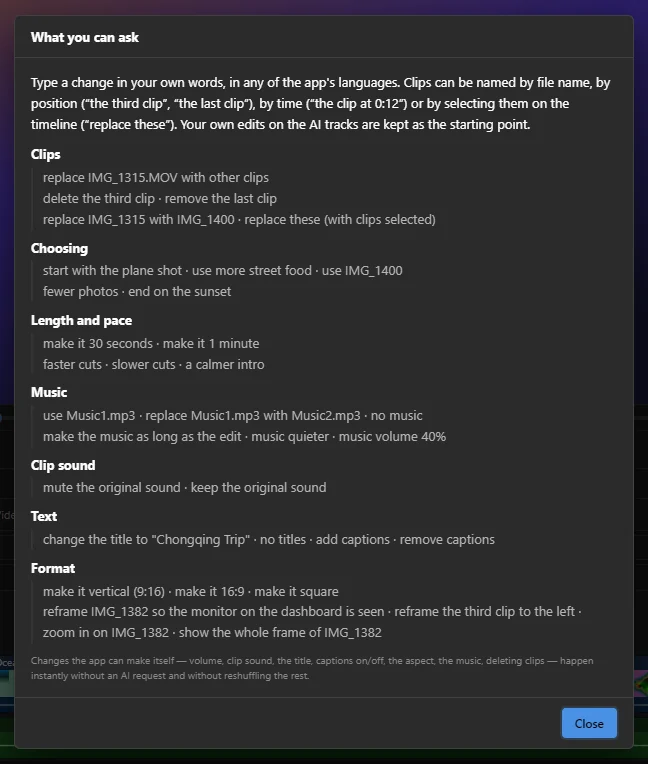
Changes the app can make itself — volume, clip sound, the title, captions on or off, the shape, the music, deleting clips and simple reframing — happen instantly, without an AI request and without reshuffling the rest. The bar says done instantly, no AI request.
The same conversation is in the dialog under Refine by chat. The last AI edit is saved with the project, so you can still revise it after closing and reopening — that costs one request to the plan model.
Your own changes are kept
You can mix revisions with editing by hand. A revision starts from the AI tracks as they are now — with your trims, deletions and volume changes. On a clip that keeps its place, it also puts back what you did to it: colour, grade, LUT, effects, mask, key, stabilising, keyframes, rotation, opacity, flip, clip volume, a title's look and an overlay's position. Clips you added to an AI track yourself move to a track named Your clips instead of being deleted (more than one such track when those clips overlap).
A revision only uses the files the edit was made from. Files added to the folders later are not read — start a new edit to use them.
Privacy
Your video files are never uploaded. What goes to the provider you chose is shown in the dialog:
- small keyframes (512 px) from the shots and photos,
- file names,
- your description,
- and, only with Transcribe speech ticked, the transcripts of what is said.
Your API key stays on your computer and is sent only to that provider — never to SnazzySoft. Finding the shots, beats and silences, and transcribing, all happen on your computer.
Questions
How much does it cost?
SnazzyCut does not charge for AI requests; your provider bills your key at its own prices. Click Estimate for a rough figure first. With free models it can cost nothing, but they are often busy and slow for hundreds of shots. A cheap paid model such as google/gemini-2.5-flash-lite costs a few cents for a whole project.
It is slow, or keeps waiting.
Free models and free tiers allow only a few requests a minute. SnazzyCut waits as long as the provider asks and carries on. Use Sheets of 9 for fewer requests, choose a cheap paid model, or set up a backup provider.
The edit has no music.
Add a folder under Music & sound and tick Add music. Or ask in the bar: "use Music1.mp3".
I don't like it at all.
Press Ctrl + Z once to remove the whole edit, change the description or options, and create it again. The shots are already described, so the second run is faster and cheaper.
What is the difference with editing through Claude or Codex?
AI Auto-Edit uses an API key you add in SnazzyCut. Editing with Claude or Codex lets an assistant you already use do the work with its own subscription — no key in SnazzyCut.