
Language, workspaces and shortcuts
Switch SnazzyCut to one of five languages, change and save workspaces, and every keyboard shortcut in one list.
Use SnazzyCut in your own language, arrange the panels for the job in front of you with workspaces, and work faster with keyboard shortcuts.
Change the language
SnazzyCut speaks five languages: English, Bahasa Indonesia, Bahasa Melayu, Español and Filipino. Each one is listed under its own name, so you can find yours even if you cannot read the current one.
The quickest way is the 🌐 button in the title bar. It shows the language in use (for example EN). Click it and pick a language.
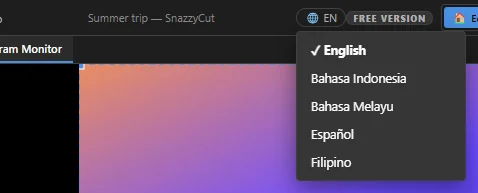 12
You can also change it:
- with View › 🌐 Language;
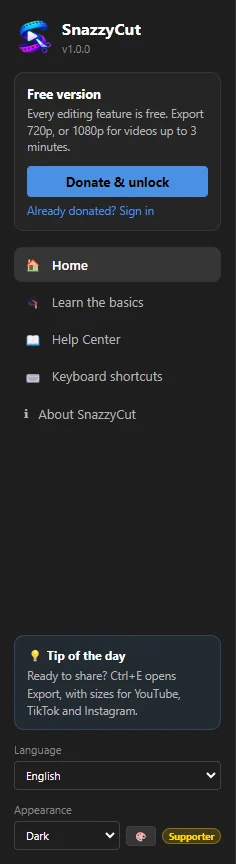
- on the Home screen, with the Language menu on the left;
- in File › Project Settings…, under Language.
 1
The whole app changes at once, without a restart, and SnazzyCut remembers your choice. The first time it starts, SnazzyCut uses the language of Windows if it is one of the five, and English otherwise.
The language is for SnazzyCut itself. It does not change anything in your projects or videos. This Help Center is written in English and Indonesian; readers of the other languages see the English pages.
Workspaces
A workspace is an arrangement of the panels for one kind of job. Switch with the buttons in the title bar:
 1234567
- 1 Edit — the balanced layout for everyday editing.
- 2 Vertical — a tall preview on the right, for 9:16 videos. Starting a Reels, TikTok & Shorts project on the Home screen switches to it.
- 3 Color — a big preview with effects and keyframes, for colour grading.
- 4 Audio — the mixer and the waveforms.
- 5 Titles — the text tools beside a large preview.
- 6 Minimal — little more than the preview and the timeline.
- 7 + Save — saves the way your panels are arranged now as your own workspace.
The same workspaces are in View › Layout, which also has Reset Layout to go back to the standard Edit arrangement.
Save your own workspace
- Arrange the panels the way you like: drag the borders between them, show or hide panels in the View menu, or right-click a panel's tab and choose Undock Panel to float it.
- Click + Save in the title bar, or choose View › Save Workspace….
- Type a name (it suggests My Workspace 1) and confirm.
Your workspace appears as a ★ button next to the others. Click it to switch to it. Right-click it for Apply, Update to Current Layout (save the arrangement you have now under the same name) and Delete.
Each project also remembers the arrangement it was saved with, so a project opens the way you left it.
Keyboard shortcuts
To see the list in SnazzyCut, choose Help › Keyboard Shortcuts or press F1. On the Home screen, click Keyboard shortcuts on the left.
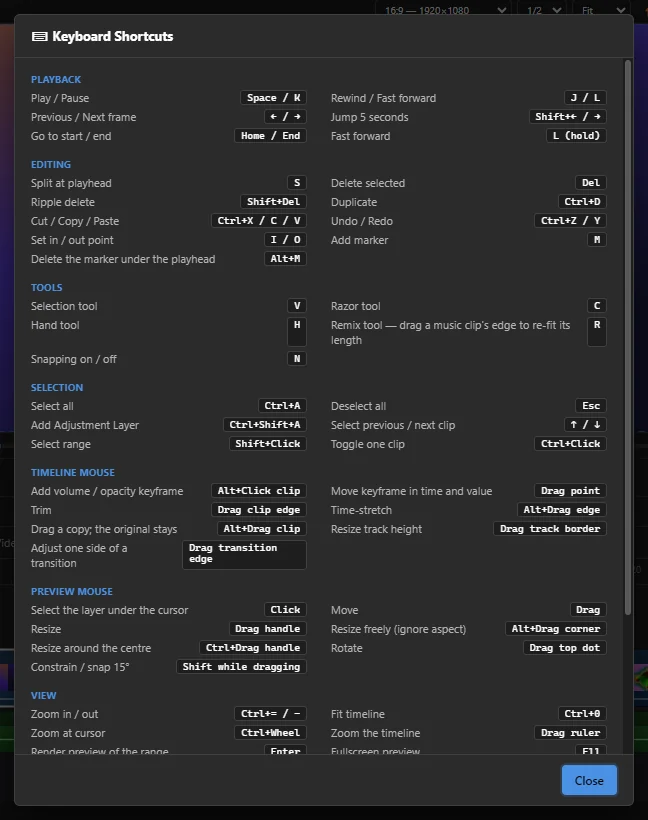
Shortcuts work when you are not typing in a box and no window is open over the editor. Ctrl + S works even while you type.
Playback
| Keys | What it does |
|---|---|
| Space or K | Play / Pause |
| J / L | Rewind / Fast forward (one second per press) |
| L (hold) | Fast forward |
| ← / → | Previous / Next frame |
| Shift + ← / → | Jump 5 seconds |
| Home / End | Go to start / end |
Editing
| Keys | What it does |
|---|---|
| S | Split at playhead |
| Del | Delete selected |
| Shift + Del | Ripple delete (delete and close the gap) |
| Ctrl + D | Duplicate |
| Ctrl + Shift + D | Detach Audio (the video's sound becomes its own clip) |
| Ctrl + X / C / V | Cut / Copy / Paste |
| Ctrl + Z / Y | Undo / Redo |
| I / O | Set in / out point |
| M | Add marker |
| Alt + M | Delete the marker under the playhead |
Tools
| Keys | What it does |
|---|---|
| V | Selection tool |
| C | Razor tool |
| H | Hand tool |
| R | Remix tool — drag a music clip's edge to re-fit its length |
| N | Snapping on / off |
Selection
| Keys | What it does |
|---|---|
| Ctrl + A | Select all |
| Esc | Deselect all |
| ↑ / ↓ | Select previous / next clip |
| Shift + click | Select range |
| Ctrl + click | Toggle one clip |
Timeline mouse
| Mouse | What it does |
|---|---|
| Alt + click clip | Add volume / opacity keyframe (on the dashed line) |
| Drag point | Move keyframe in time and value |
| Drag clip edge | Trim |
| Alt + drag edge | Time-stretch |
| Alt + drag clip | Drag a copy; the original stays |
| Drag track border | Resize track height |
| Drag transition edge | Adjust one side of a transition |
Preview mouse
| Mouse | What it does |
|---|---|
| Click | Select the layer under the cursor |
| Drag | Move |
| Drag handle | Resize |
| Alt + drag corner | Resize freely (ignore aspect) |
| Ctrl + drag handle | Resize around the centre |
| Drag top dot | Rotate |
| Shift while dragging | Constrain / snap 15° |
View
| Keys | What it does |
|---|---|
| Ctrl + = / - | Zoom in / out |
| Ctrl + 0 | Fit timeline |
| Ctrl + mouse wheel | Zoom at cursor |
| Drag ruler | Zoom the timeline |
| Enter | Render preview of the range |
| F11 | Fullscreen preview |
File
| Keys | What it does |
|---|---|
| Ctrl + N | New project |
| Ctrl + O | Open project |
| Ctrl + S | Save |
| Ctrl + Shift + S | Save as |
| Ctrl + I | Import media |
| Ctrl + Shift + L | Relink offline media |
| Ctrl + E | Export video |
| Ctrl + Shift + E | Export the frame as a picture |
Tracks
| Keys | What it does |
|---|---|
| Ctrl + Shift + N | Add video track |
| Ctrl + Alt + N | Add audio track |
More shortcuts from the menus
| Keys | What it does |
|---|---|
| F1 | Keyboard Shortcuts |
| Ctrl + W | Close Project (back to the Home screen) |
| Ctrl + Q | Exit SnazzyCut |
| Ctrl + , | Project Settings… |
| Ctrl + G | Close All Gaps |
| Alt + X | Clear In and Out |
| Ctrl + R | Speed / Duration… |
| Ctrl + Shift + R | Speed Ramp… |
| Ctrl + Shift + A | Add Adjustment Layer |
| Ctrl + Shift + G | Nest Selected Clips |
| Ctrl + Enter | Open Nested Clip |
| Ctrl + ↑ | Close Nested Clip |
| Ctrl + Shift + U | Un-nest (Break Apart) |