AI providers and API keys
Choose OpenRouter, OpenAI, Anthropic, Gemini or a local model, add your key, pick the models and set up a backup.
AI Auto-Edit works with an AI service you choose — OpenRouter, OpenAI, Anthropic, Google Gemini, or a model running on your own computer — using your own API key. This page shows how to get a key, add it, pick the models and set up a backup. Supporter
An API key is a long password that lets an app use your account at an AI service. The service bills your account for what the app uses (or counts it against a free allowance). SnazzyCut never charges for it and never sees your bill.
Open the settings with AI › AI Providers…, or with AI providers… in the AI Auto-Edit dialog.
These settings are only for AI Auto-Edit. Editing with Claude or Codex uses the assistant's own subscription and needs no key here. Captions and narration run on your computer and need no key at all.
 123456789
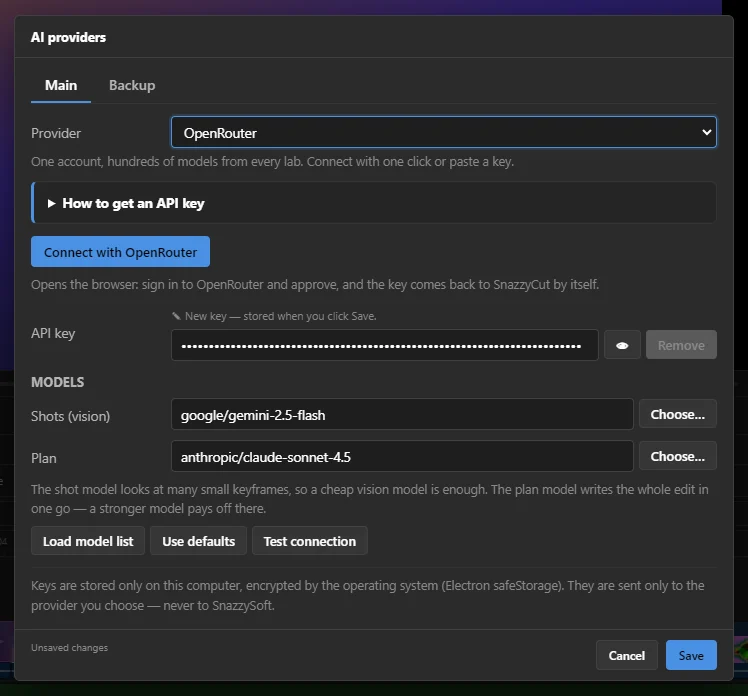
- 1 Main and Backup — the provider you use, and an optional second one for when it fails.
- 2 Provider — which AI service to use.
- 3 How to get an API key — step-by-step help for the chosen provider. It is open by itself while no key is saved.
- 4 Connect with OpenRouter — sign in through the browser and the key arrives by itself (OpenRouter only).
- 5 API key — paste your key here. It shows as dots.
- 6 The eye button shows what you pasted, to check it.
- 7 Models — the model that looks at the shots, and the one that plans the edit. Choose… opens the provider's list.
- 8 Load model list, Use defaults and Test connection.
- 9 Save — nothing is stored until you click it.
Choose a provider
| Provider | Good to know |
|---|---|
| OpenRouter | One account, hundreds of models from every lab, with their prices shown in SnazzyCut. Connect with one click or paste a key. Some models are free. |
| OpenAI | A key from platform.openai.com. A ChatGPT Plus subscription does not include API use. |
| Anthropic (Claude) | A key from console.anthropic.com. A Claude.ai subscription does not include API use. |
| Google Gemini | A key from aistudio.google.com. Has a free tier with limits. |
| Custom (OpenAI-compatible) | A model on your own computer (Ollama, LM Studio) or another service with an OpenAI-compatible address. A key is optional. |
New to all this? Pick OpenRouter and click Connect with OpenRouter: there is nothing to copy, and you can choose from paid and free models later.
Get an API key
Open How to get an API key in the dialog for the exact steps of the chosen provider. Its buttons open the right web page — the key page, the credits page, or the Ollama and LM Studio downloads. In short:
- OpenRouter: click Connect with OpenRouter, sign in and approve in the browser — the key comes back to SnazzyCut by itself and is stored at once. Or by hand: sign in at openrouter.ai, add credit under Settings → Credits (a few dollars is plenty for many edits; some models are free), then Settings → API Keys → "Create API Key". The key starts with
sk-or-. - OpenAI: at platform.openai.com add a payment method or prepaid credit under Settings → Billing, then "API keys" → "Create new secret key". The key starts with
sk-. - Anthropic: at console.anthropic.com buy credits under Settings → Billing, then Settings → API keys → "Create Key". The key starts with
sk-ant-. - Google Gemini: at aistudio.google.com click "Get API key", then "Create API key", and choose or create a Google Cloud project. The key starts with
AIzaorAQ..
Most providers show a new key only once, and anyone who has it can spend on your account. Copy it straight into SnazzyCut, and do not share it or post it in screenshots.
Add the key
- Choose the Provider.
- Paste the key into API key. It shows as dots; click the eye to check it. The line above says New key — stored when you click Save.
- Click Save. From then on the line says Key saved with how the key starts and its last four characters, for example
sk-or-v1-••••a6c3.
- To replace a key, paste the new one over it and click Save. Remove deletes the saved key when you click Save (Undo changes your mind).
- If what you pasted does not start the way that provider's keys do, a warning tells you — usually a piece is missing from the copy. An OpenRouter key pasted without its start is fixed for you.
- Everything in the dialog is a draft until Save; Cancel throws the changes away. Unsaved changes at the bottom reminds you.
Keys are stored only on this computer, encrypted, and sent only to the provider you chose — never to SnazzySoft.
Choose the models
AI Auto-Edit uses two models:
- Shots (vision) — looks at many small keyframes and describes them. It must be able to see images, and a cheap model is enough.
- Plan — writes the whole edit in one answer. It only reads text, and a stronger model pays off here.
Each provider starts with suitable models filled in, and Use defaults puts them back. To pick others, click Choose… beside the field. The model chooser lists everything the provider offers, with:
- a search box (for example "gemini flash", "gpt mini", "claude"),
- Only models that see images (ticked for the shot model) and Only free models,
- sorting by Cheapest first, Name or Largest context,
- for each model, its price per million tokens (where the provider publishes it), whether it sees images, and its context size. A few Recommended models come first.
A token is a small piece of text or picture that providers count and charge for. A few hundred shots use roughly 0.3–1 million input tokens for the shot model.
Load model list fetches the provider's current list; a model the provider no longer lists is swapped for the closest one it does.
Test the connection
Test connection sends one short request to each of the two models, using what is on screen, saved or not. It answers Connection works, or says which model failed and why — a refused key, no credit, a model that does not exist or cannot see images. When the provider suggests another model, a button puts it in the field for you. It also tells you a model's daily limit and when it resets, when the provider reports one.
On a tight free tier (some models allow only 20 requests a day), each test counts towards the limit.
Backup provider
 1234
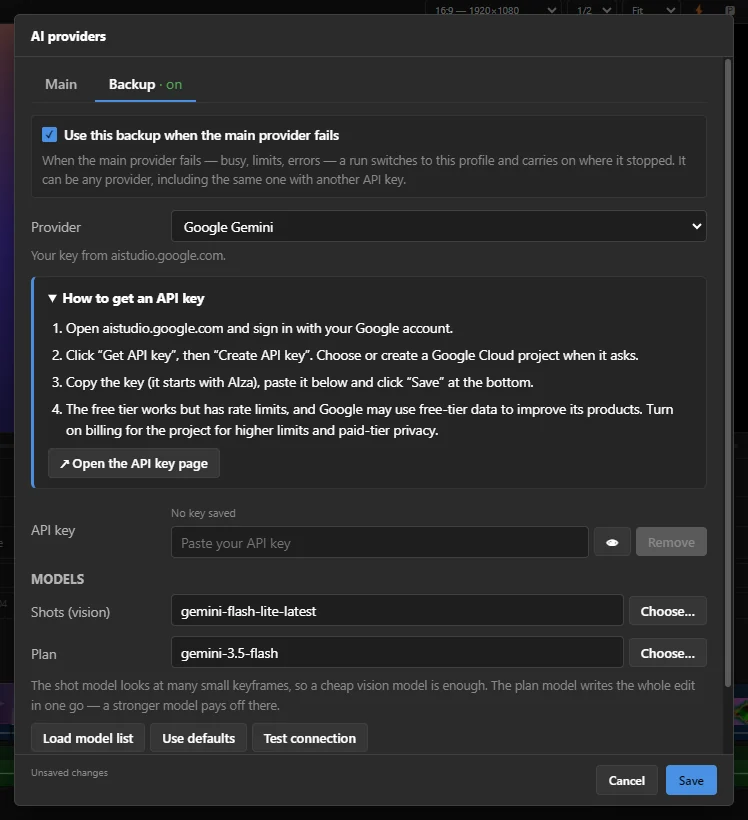
- 1 The Backup tab; it shows · on when the backup is switched on.
- 2 Use this backup when the main provider fails.
- 3 The backup's own provider, with its own key and models below.
- 4 The key guide for that provider.
When the main provider fails during a run — busy, out of credit, a limit used up, errors that keep coming back — AI Auto-Edit switches to the backup and carries on where it stopped. Nothing already done is redone, and the activity log says when it switched.
The backup can be any provider, including the same one with another API key — for example a second Gemini key when the first one's free daily limit runs out.
Limits and free tiers
When a provider reports a limit for a model, SnazzyCut remembers it for that key and model:
- Test connection says how big the limit is and when it resets;
- the AI Auto-Edit dialog warns about a used-up model before a run, and Estimate compares the requests a run needs with the daily limit;
- a run goes straight to the backup (or stops at once with the reset time) instead of trying a used-up model again and again.
Tips for free use
- Google Gemini free tier: it works, but has limits per minute and per day, and Google may use free-tier data to improve its products. Pro models get no free quota — pick a Flash model. Gemini's daily limits reset at midnight Pacific time. Turning on billing for the Google Cloud project gives higher limits and paid-tier privacy.
- OpenRouter free models (names ending in
:free) are shared by everyone and limited to a handful of requests a minute and a daily cap (higher once you have bought credits). Fine for trying out, slow for hundreds of shots. - Each model has its own daily limit. When one is used up, pick another free model for the shots.
- In AI Auto-Edit, Sheets of 9 sends nine keyframes per picture: fewer requests, and with Gemini about half the image tokens.
- For a big project, a cheap paid model is far more reliable than a free one —
google/gemini-2.5-flash-liteon OpenRouter, for example, costs a few cents for a whole project.
A model on your own computer
With Custom (OpenAI-compatible) you can use a model running on your own computer — free and private, but slower and less precise than cloud models.
- Ollama: install it, run
ollama pull gemma3in a terminal to get a model that can see images, and use the Base URLhttp://127.0.0.1:11434/v1. No key needed. - LM Studio: install it, download a vision model, then open Developer → Start server. Base URL
http://127.0.0.1:1234/v1. No key needed. - Another service with an OpenAI-compatible API: copy its base URL and key from its dashboard.
Type the model names exactly as the server lists them, or click Load model list.
Questions
Can SnazzySoft see my key?
No. The key is stored encrypted on this computer and sent only to the provider you chose. The app itself only ever shows its start and last four characters.
I pay for ChatGPT Plus or Claude.ai. Can I use that?
Not here: those subscriptions do not include API use, so AI Auto-Edit needs a separate API key. But you can let Claude or Codex edit in SnazzyCut with the subscription you already have — see Edit with Claude or Codex.
It says the provider rejected the API key.
Copy the whole key again — including its start — paste it, and click Save. Check that the provider chosen matches the key.
The settings open on a "Supporter feature" screen.
AI Auto-Edit and its provider settings are for supporters. See Supporter.