
Save, open and autosave projects
Save your edit as a .scp project, reopen it, get work back after a crash, move a project and relink its media, and change Project Settings.
A project is your edit saved as a small .scp file. Save it to carry on later, let autosave protect the work in between, and reopen it from the Home screen, the File menu or Explorer.
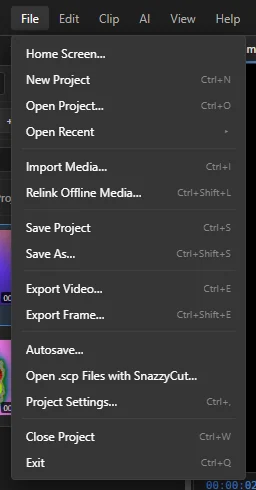 123456789
- 1 Open Project… and Open Recent — open a project you saved.
- 2 Save Project and Save As… — save the project.
- 3 Export Video… and Export Frame… — make a video or a picture (see Export your video).
- 4 Autosave… — how often SnazzyCut saves a backup copy by itself.
- 5 Open .scp Files with SnazzyCut… — make a double-click on a project open SnazzyCut.
- 6 Project Settings… — name, size, frame rate and background colour.
- 7 Close Project — close it and go back to the Home screen.
- 8 Relink Offline Media… — find video, photo and music files that have moved.
- 9 Home Screen… — back to the Home screen.
Save a project
- Press Ctrl + S, or choose File › Save Project.
- The first time, a Save window asks where to put it. Choose a folder, type a name and click Save. The project takes the name of the file.
- After that, Ctrl + S saves straight into the same file, without asking.
The title bar shows the project's name. A * after it means there are changes you have not saved yet.
To keep a second copy under another name — a version for a client, for example — choose File › Save As… (Ctrl + Shift + S). From then on you are working in the new file.
A .scp file does not contain your videos, photos and music. It remembers where they are on your computer, plus every cut, title and effect. That is why it is small, and why the media files must stay where they are (or be relinked after a move).
The project also remembers how you worked on it: the workspace and panels, the timeline zoom and where the playhead was. They come back when you open it.
The automatic .bak copy
Each time you save, SnazzyCut keeps the previous version beside the project as name.scp.bak. If a project file is ever damaged (for example the computer lost power while saving), SnazzyCut opens this backup instead and says Recovered From Backup. Press Ctrl + S to write it back into the project file.
Open a project
- Home screen — click a project under Recent projects (see Recent projects).
- File menu — File › Open Project… (Ctrl + O) to pick a file, or File › Open Recent for the last projects you used. Clear Recent Projects at the bottom empties the list; the files are not deleted.
- Explorer — double-click a
.scpfile, or drag it onto the SnazzyCut window.
If the project on screen has unsaved changes, SnazzyCut asks first: Save, Don't Save or Cancel.
Only one SnazzyCut window opens at a time. Double-clicking another project while SnazzyCut is running opens it in the window you already have.
Make .scp files open in SnazzyCut
The installer sets this up for you. If double-clicking a project does not open SnazzyCut (for example with a copy that was not installed), choose File › Open .scp Files with SnazzyCut…. The window says what opens .scp files now. Click Use This Copy.
If you once chose another program for .scp files yourself, Windows keeps that choice and SnazzyCut shows One More Step. Right-click any .scp file › Open with › Choose another app › SnazzyCut, and tick Always.
Close a project
Choose File › Close Project, press Ctrl + W, or click the window's ✕. SnazzyCut asks about unsaved changes, closes the project and goes back to the Home screen. Click ✕ on the Home screen to quit SnazzyCut.
To quit SnazzyCut straight from the editor, choose File › Exit (Ctrl + Q). It asks the same question about unsaved changes first.
Autosave
Autosave writes a copy of your work to a separate recovery file every few minutes, so a crash or a power cut costs you at most those few minutes. It never writes over your project file.
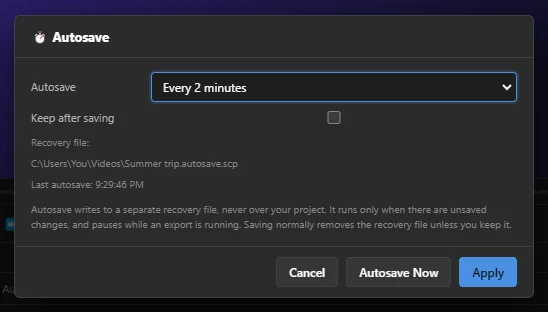 1234
- 1 How often: Off, or every 1, 2, 5, 10 or 15 minutes. It starts at Every 2 minutes.
- 2 Keep after saving — normally the recovery file is deleted when you save, because the project file is then up to date. Tick this to keep it.
- 3 Where the recovery file is, and when the last autosave was.
- 4 Autosave Now — makes a recovery copy right away.
Click Apply to keep your choice. Autosave only runs when there are unsaved changes, and it waits while an export is running.
Where the recovery file is
- For a saved project: in the same folder as the project, named
name.autosave.scp. For example,Summer trip.scpgetsSummer trip.autosave.scp. - For a project that was never saved:
untitled.autosave.scpin SnazzyCut's own data folder. For an installed SnazzyCut that is%APPDATA%\SnazzyCut; for a copy that was not installed, thedatafolder besideSnazzyCut.exe. The Autosave window shows the exact place.
Getting your work back after a crash
A project you had never saved: the next time SnazzyCut starts, it shows Unsaved Work Found.
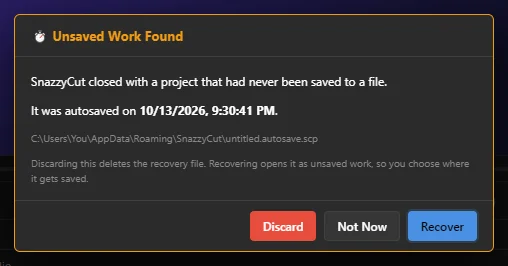 123
- 1 Discard — deletes the recovery file.
- 2 Not Now — leaves it; you are asked again next time.
- 3 Recover — opens the work as an unsaved project. Then use File › Save As… to save it where you want.
A project you had saved before: SnazzyCut does not ask. Open your project as usual; if it is missing your last changes, open the recovery file instead:
- Choose File › Open Project… and go to the project's folder.
- Open
name.autosave.scp(for exampleSummer trip.autosave.scp). - Check that your changes are there, then choose File › Save As… and save it over your project file (or under a new name).
A recovery file opens as an unsaved project, so Ctrl + S also asks where to save — choose your project file to bring it up to date. Nothing is ever saved back into the recovery file by accident.
Moving a project and relinking media
Because the project only remembers where your files are, moving or renaming them (or opening the project on another computer) makes them offline: the edit is still all there, but SnazzyCut cannot find the pictures and sound. Offline clips are marked in red, and the monitor shows MEDIA OFFLINE.
When you open a project with offline files, the 🔗 Relink Offline Media window opens by itself. You can also open it with File › Relink Offline Media… (Ctrl + Shift + L) or the Relink… button in the Media panel.
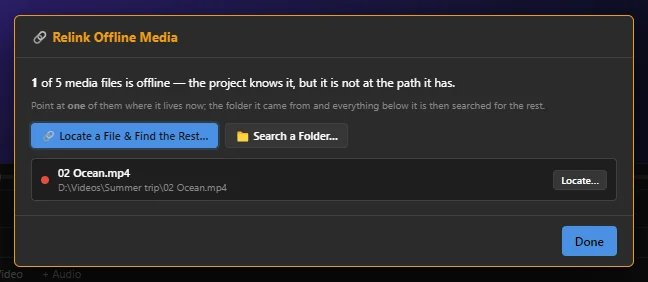 12
- Click 🔗 Locate a File & Find the Rest… and pick one of the missing files in its new place. SnazzyCut then searches that folder and the folders inside it for the others. Or click 📁 Search a Folder… and choose the folder the files moved to.
- When all media is back online, click Done.
- Save the project (SnazzyCut offers to). Otherwise the same files are offline again the next time you open it.
To move a project to another computer or drive, copy the .scp file and all the media it uses. Keeping everything for one video in one folder makes this easy: after the copy, one relink of one file finds the rest.
Project Settings
Choose File › Project Settings… or press Ctrl + , (comma).
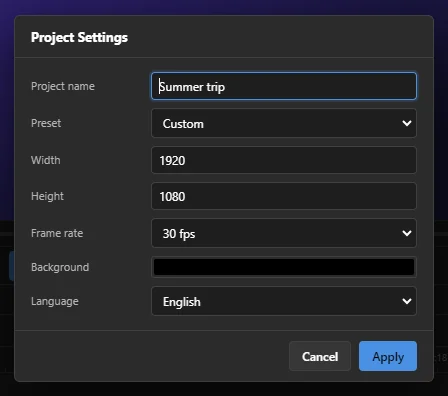 123456
- 1 Project name — the name in the title bar and the name offered when you export.
- 2 Preset — fills in a common size and frame rate: YouTube 1080p, YouTube 4K, TikTok / Reels, Instagram Square or Cinematic 24p.
- 3 Width and Height — the size of the picture in pixels. They set its shape.
- 4 Frame rate — pictures per second.
- 5 Background — the colour where no clip covers the picture.
- 6 Language — the language of SnazzyCut itself, not of the project (see Language, workspaces and shortcuts).
Click Apply. Your clips stay where they are; you can undo the change with Ctrl + Z.