
Transitions
Add a transition between two clips, change its length, easing and direction, remove it, and smooth joins in your sound.
A transition is the way one clip changes into the next: a soft dissolve, a wipe, a zoom or a flash. Without one, the picture simply cuts, which is often the best choice. Use transitions where you want the change to be felt.
The Transitions panel
Click the Transitions tab at the top of the left panel.
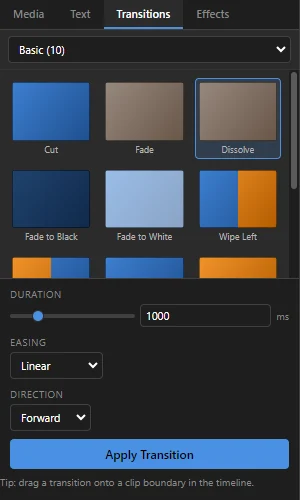 123456
- 1 Category — Basic (fades, dissolves and wipes), Motion (slides, pushes, zooms, whip pans), Creative, Light, Trendy, Fast Cut, Audio, Mask, Shapes and Leaks (warm light leaks). All shows every transition at once. The number in brackets is how many there are.
- 2 Transitions — each picture shows the transition halfway through. Click one to watch it play on the monitor, on a loop, with your own clips (the one under the playhead and the next one). Click it again to stop.
- 3 Duration — how long it lasts, in milliseconds (1000 ms = 1 second).
- 4 Easing — how the speed changes during the transition: Linear is even, Ease In starts slowly, Ease Out ends slowly, Ease In-Out does both, and Bounce, Elastic, Back and Cubic are livelier.
- 5 Direction — Forward, Reverse or Alternate, for example which way a wipe travels.
- 6 Apply Transition — adds the chosen transition to the selected clip.
Duration, easing and direction are used for the next transition you add. To change one that is already on the timeline, select it there (see Change or remove a transition).
Add a transition
A transition sits on a cut: the point where one clip ends and the next begins, on the same video track.
- Drag a transition from the panel onto the cut on the timeline. It snaps to the nearest cut.
- Or select a clip on the timeline and double-click a transition (or click it, then Apply Transition). It goes on the cut at the end of that clip, or at its start if no clip follows it.
The status bar confirms where it went, and a block appears across the cut on the timeline.
Drop a transition on the outer edge of a clip, where nothing is next to it, and the clip comes in from nothing or goes out to nothing, for example zooming in at the very start of your video. This works on titles too.
Each cut holds one transition: dropping a new one replaces the old one. A transition can be at most 90% as long as the shorter of its two clips.
Change or remove a transition
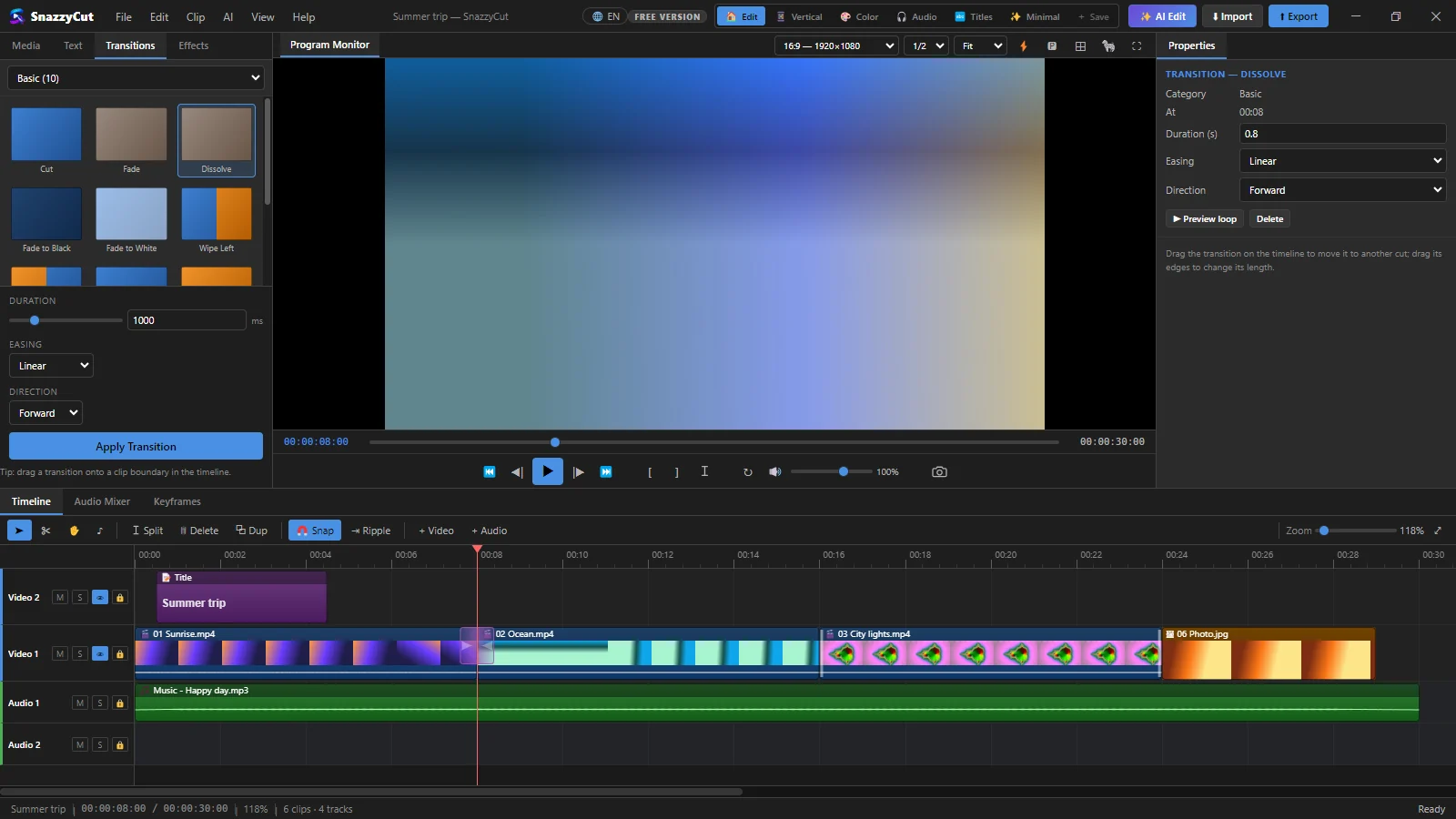 12
- 1 Click the transition's block on the timeline to select it.
- 2 Properties shows its Duration (s), Easing and Direction. ▶ Preview loop plays it over and over while you adjust it, and Delete removes it.
- Drag the block to move the transition to another cut. Drag its left or right edge to make it longer or shorter; the other edge stays where it is, so a transition can sit more on one side of the cut than the other.
- Right-click the block for Change Duration…, Replace With and Delete Transition.
- An Echo Zoom transition also has Echo layers in Properties: how many trailing copies it draws, from 1 to 6.
- To remove a selected transition, you can also press Del.
Transitions stay with their clips. Move or trim the clips and the transition follows the cut. If the cut disappears (for example, you delete one of the clips), the transition is removed too.
Mask Reveal: a transition in your own shape
The Mask category has soft-edged reveals such as a circle or a sweep. One of them, Mask Reveal, lets you draw the shape yourself: the next clip appears inside a shape that grows (or moves) from a start shape to an end shape — for example from a small oval around a face to the whole frame.
- Add Mask Reveal from the Mask category to a cut, like any transition.
- Click its block on the timeline. Properties shows Mask Reveal — shapes under the usual settings. (Right-click the block › Edit Mask Shapes… does the same.)
- Click ◇ Shape the start. The playhead goes to the first frame of the transition and the start shape appears on the monitor with handles: drag the handles to size it and the middle to move it. The end shape shows faintly behind it.
- Click the button again to finish, then do the same with ◇ Shape the end.
- Click ▶ Preview loop to watch it.
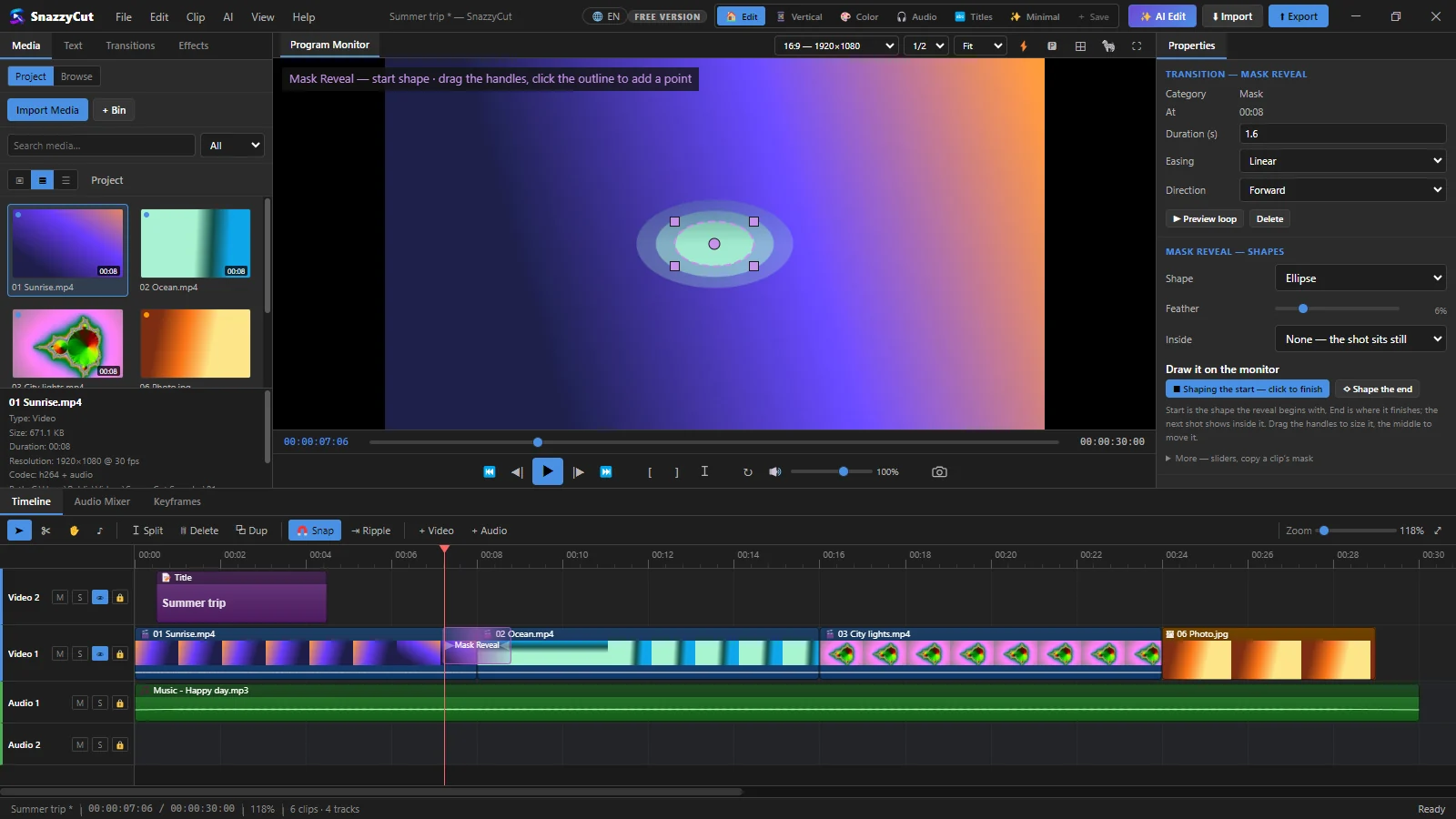 1234
- 1 Shape (Ellipse, Rectangle or Custom — drag the points), Feather (how soft the edge is) and Inside: None — the shot sits still, Zoom — arrives zoomed in and settles, or Echo Zoom — zoom with trailing copies (with Echo layers to set how many copies).
- 2 ■ Shaping the start — click to finish — the start shape is being edited on the monitor.
- 3 ◇ Shape the end — edit the end shape instead.
- 4 The monitor — drag the handles. With Custom, drag the points, and click the outline to add a point (it is added to both shapes, so they always match).
Under More — sliders, copy a clip’s mask are exact sliders for each shape, and two shortcuts: Use the outgoing clip’s mask as Start and Use the incoming clip’s mask as End.
Audio transitions
The Audio category smooths the join between two pieces of sound, such as two songs.
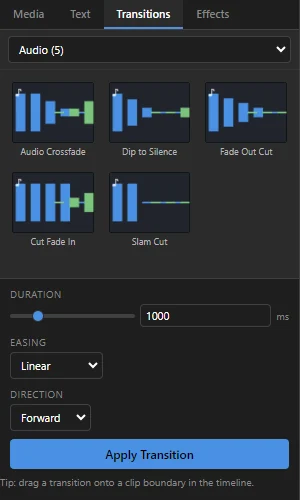 12
| Transition | What you hear |
|---|---|
| Audio Crossfade | The first sound fades out while the next fades in. |
| Dip to Silence | The first sound fades down to silence, then the next fades up. |
| Fade Out Cut | The first sound fades out; the next starts at full volume. |
| Cut Fade In | The first sound stops; the next fades in. |
| Slam Cut | The first sound stops a moment early, then the next starts at full volume. |
Drag one onto the join between two audio clips on an audio track, or select the second clip and double-click the transition. Audio transitions do not add a block: they set the fades of the two clips. To change or remove them, use Fade In and Fade Out in Properties › Audio, or undo with Ctrl + Z. More in Sound and music.
I dropped a transition and nothing happened. Why?
Look at the status bar at the bottom. A picture transition must go on a video track, close to a clip; an audio transition must go on the join between two touching audio clips. If two clips have a gap between them, close it first (drag one clip until it snaps to the other).