
Colour themes
Change the colours SnazzyCut is drawn in: Dark, Light, Midnight, High contrast, Paper, Brutalism or your own colours. A Supporter feature; the free version uses Dark.
A theme sets the colours SnazzyCut itself is drawn in: dark for a dim room, light for daylight, high contrast for easy reading, or your own colours. It changes the editor only — never your video. Supporter
The free version uses the Dark theme; the other themes and your own colours are unlocked by a Supporter donation (see In the free version).
Pick a theme
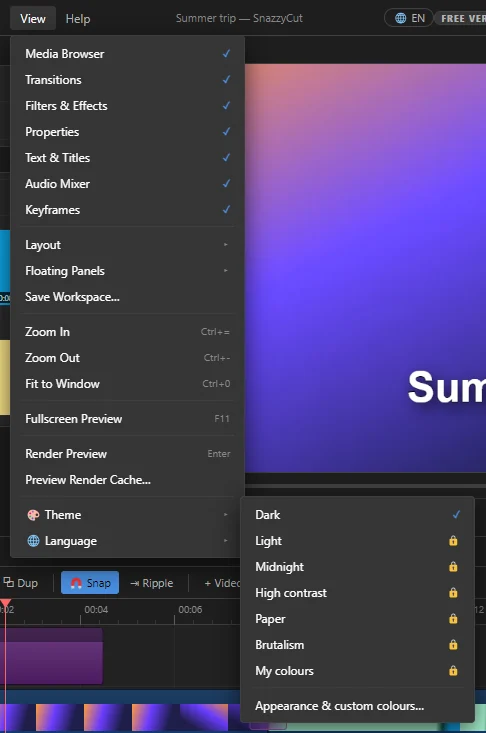
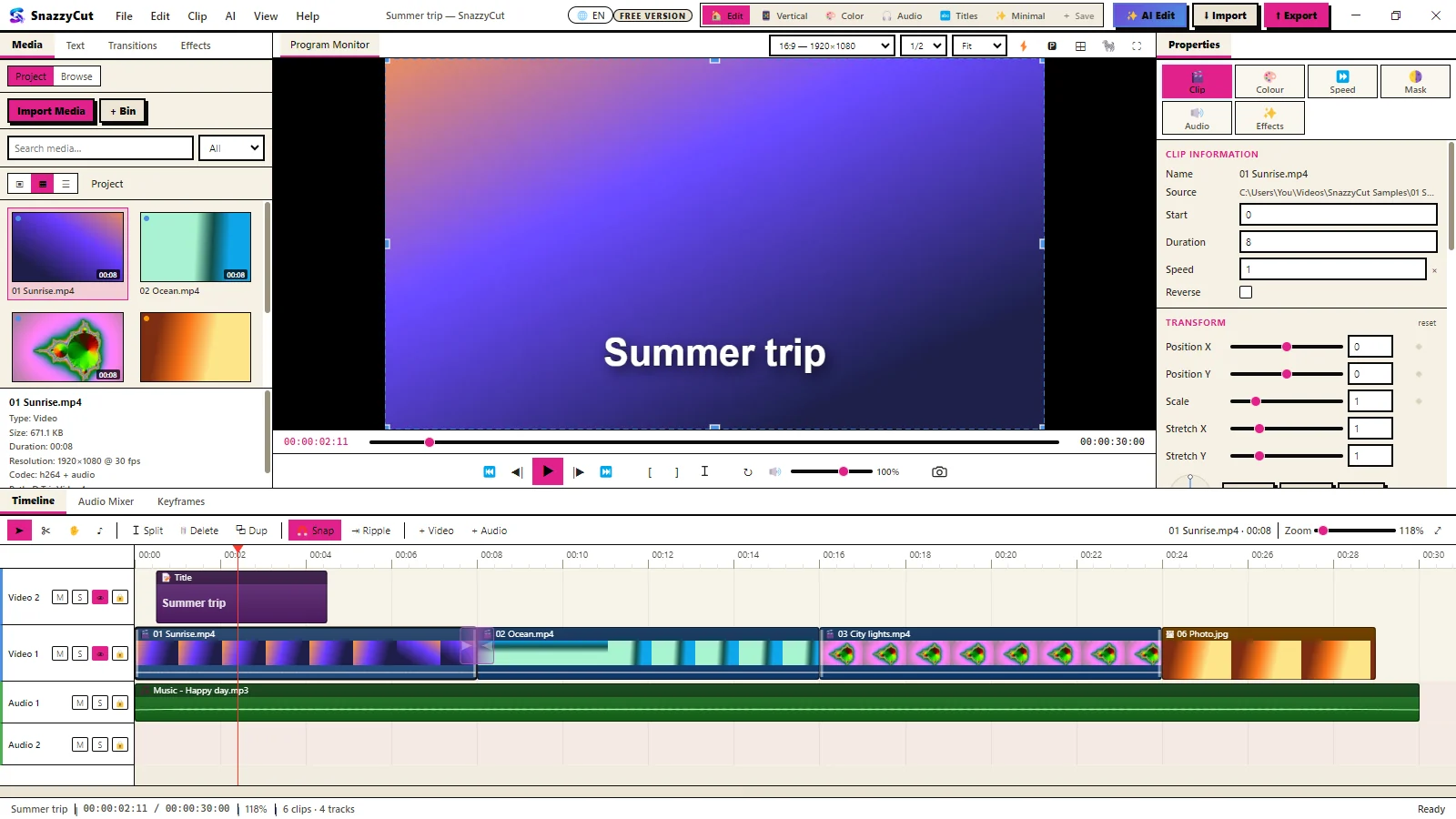
Choose View › 🎨 Theme and click a theme. It changes at once, and SnazzyCut remembers it next time. A ✓ marks the theme in use, and in the free version a 🔒 marks the themes that need a Supporter licence.
 12
- 1 The themes. Click one to use it.
- 2 Appearance & custom colours… — opens the Appearance window, where you can compare the themes and make your own.
| Theme | What it is like |
|---|---|
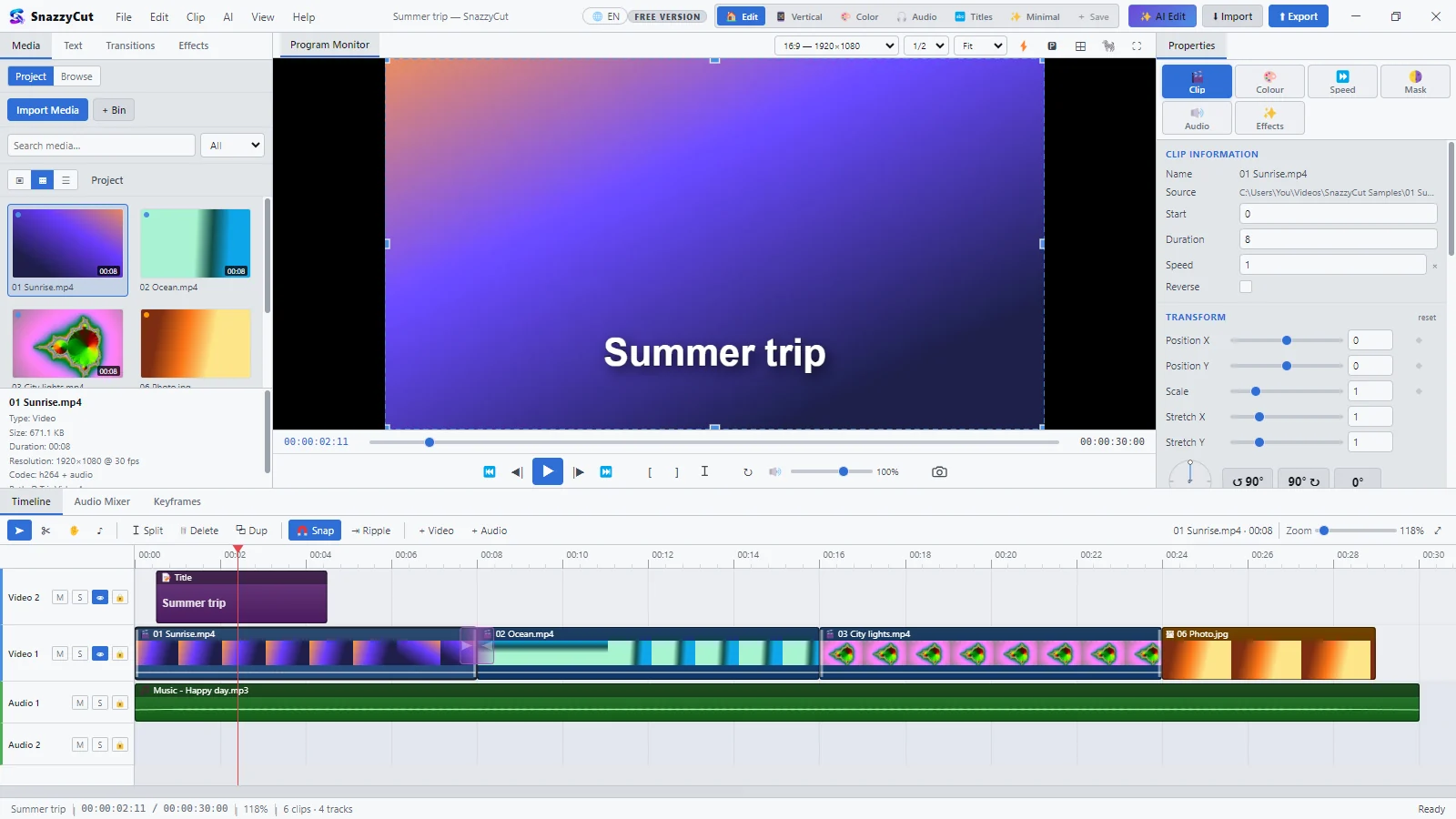
| Dark | The classic editing suite. Easy on the eyes, makes video pop. This is where SnazzyCut starts. |
| Light | Bright and clean, for daylight rooms. |
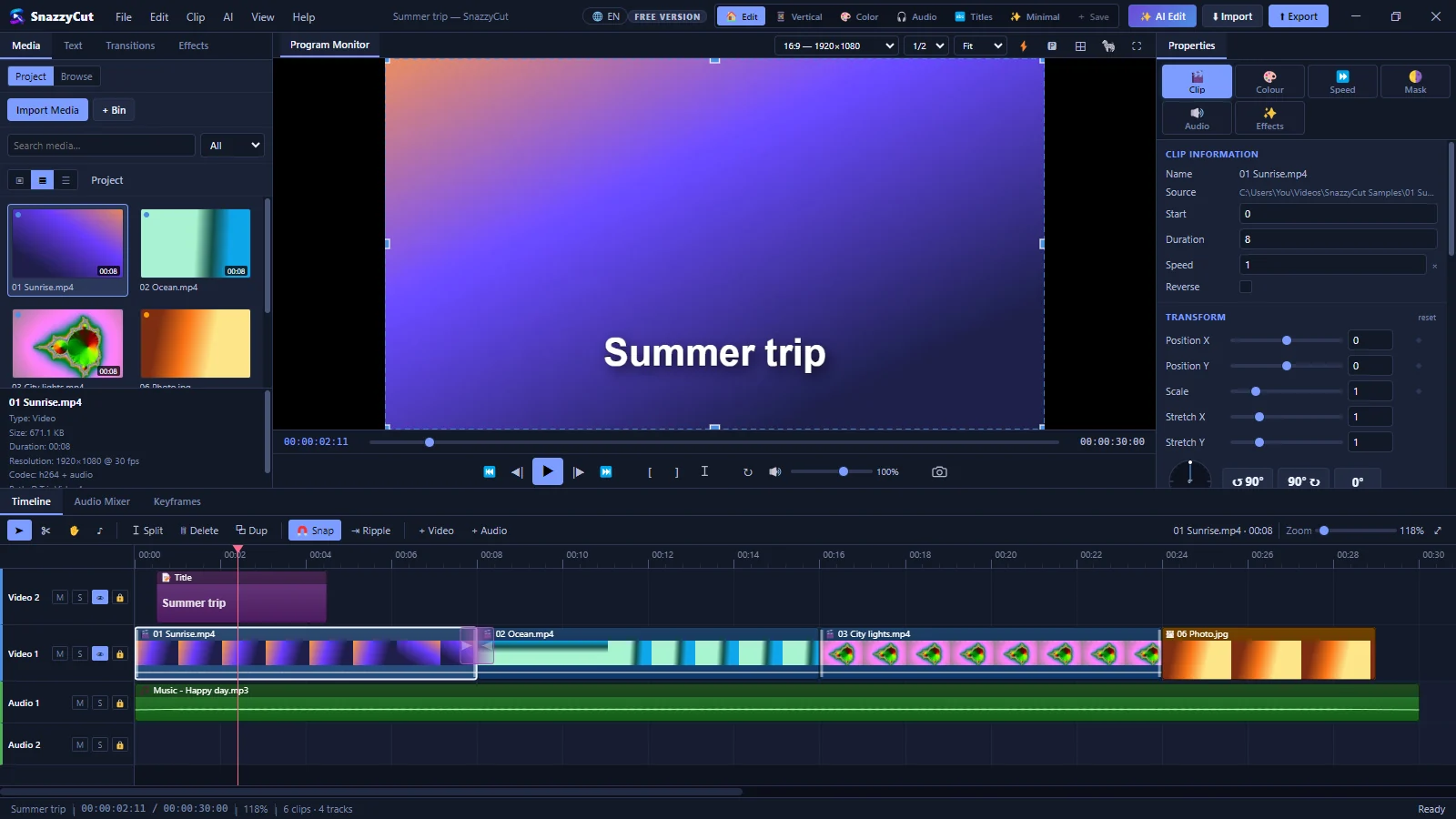
| Midnight | Deep blue dark for late sessions. |
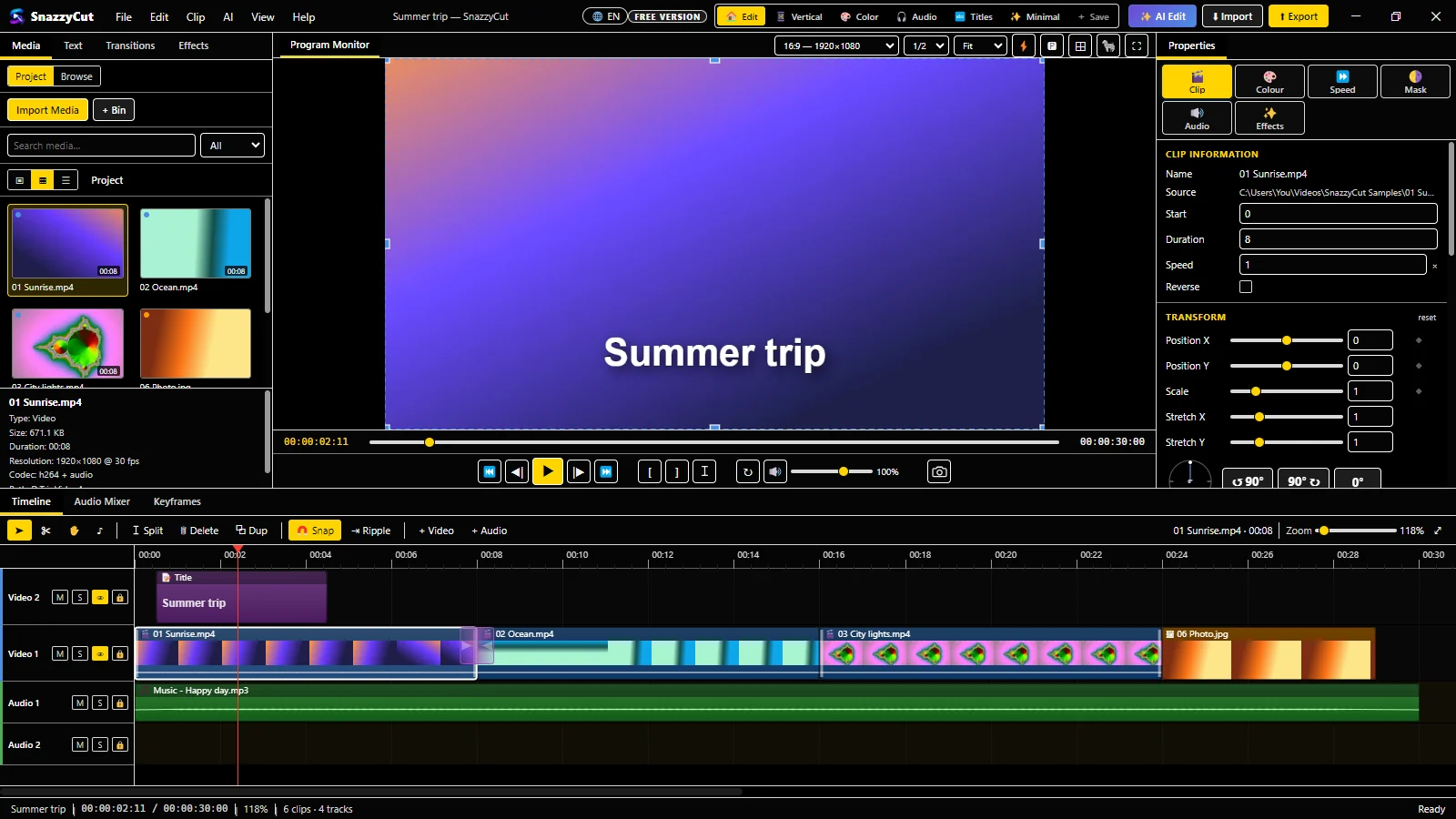
| High contrast | Black, white and yellow; every control outlined. Easiest to read. |
| Paper | Warm off-white, soft on the eyes. |
| Brutalism | Bold ink borders, hard shadows, loud magenta. |
| My colours | Your own colours, corners and style (see below). |
What they look like
In the free version
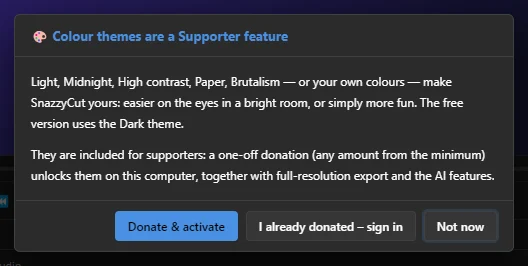
Colour themes are a Supporter feature, so the free version shows Dark. If you choose another theme — in View › 🎨 Theme, in the Appearance window or on the Home screen — SnazzyCut shows this window instead:
 123
- 1 Donate & activate — opens your browser to donate. When you come back activated, the theme you chose is put on at once.
- 2 I already donated – sign in — signs in with the account you donated with.
- 3 Not now — closes the window and keeps Dark.
SnazzyCut remembers the theme you chose. Whenever this computer's licence is active, that theme comes back by itself — also right after you activate. See Free and Supporter for how donating works.
The Appearance window
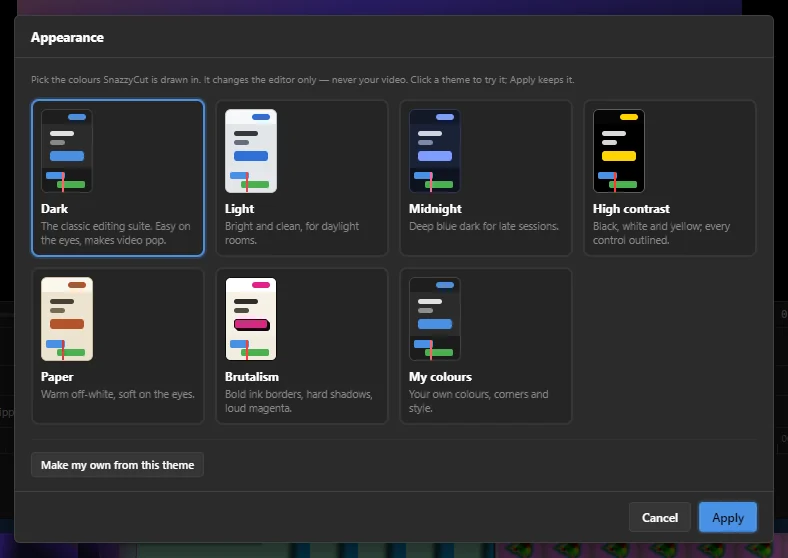
Open it with View › 🎨 Theme › Appearance & custom colours…. In the free version this shows the Supporter window above first.
 123
- 1 Every theme with a small picture of it. Click one to try it: the whole editor changes behind the window straight away.
- 2 Make my own from this theme — starts your own theme from the colours of the one you clicked.
- 3 Apply — keeps the theme you tried. Cancel puts the old one back.
Make your own colours
- In the Appearance window, click the theme closest to what you want.
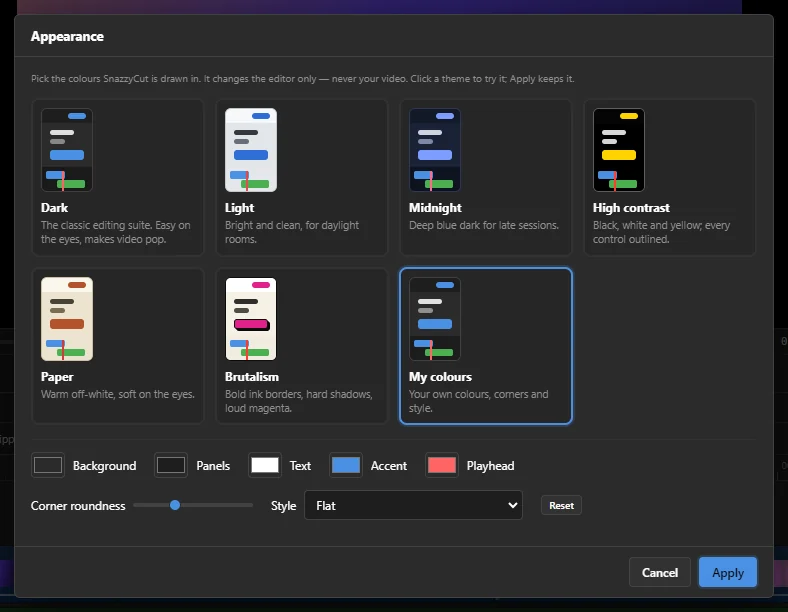
- Click Make my own from this theme. My colours is now selected, with that theme's colours, and the settings below appear.
- Change the colours, the corners and the style (see the list below). Each change shows at once.
- Click Apply.
 1234
- 1 Five colours. Click a square to pick a colour:
- Background — the window behind and between the panels.
- Panels — the panels and the title bar; the other shades are worked out from this one.
- Text — words and icons.
- Accent — the main buttons, selected items and highlights.
- Playhead — the line that shows where you are on the timeline.
- 2 Corner roundness — from square corners (left) to round ones (right).
- 3 Style — the shape of things: Flat, Brutal (ink borders, hard shadows) or High contrast (outlined).
- 4 Reset — back to the starting colours of My colours.
"Text and panels are close in brightness"
If the text colour is too close to the panel colour, a warning appears under the settings:
 12
The number is the contrast ratio. At 4.5:1 or more, text is comfortable to read. Make the text lighter or the panels darker (or the other way round) until the warning goes away.
From the Home screen
On the left side of the Home screen, the Appearance menu picks a theme, and the 🎨 button next to it opens the Appearance window. Choosing My colours there also opens the window. In the free version a Supporter label sits next to it, and choosing a theme other than Dark shows the Supporter window.
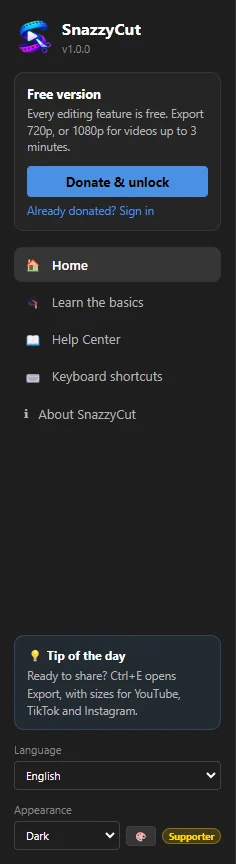 1
A theme belongs to SnazzyCut on this computer, not to a project: every project opens in the theme you chose. The theme never changes your clips, colours or export.