
The Home screen
Start a project in the right shape, drop your files for a first cut, and reopen recent projects.
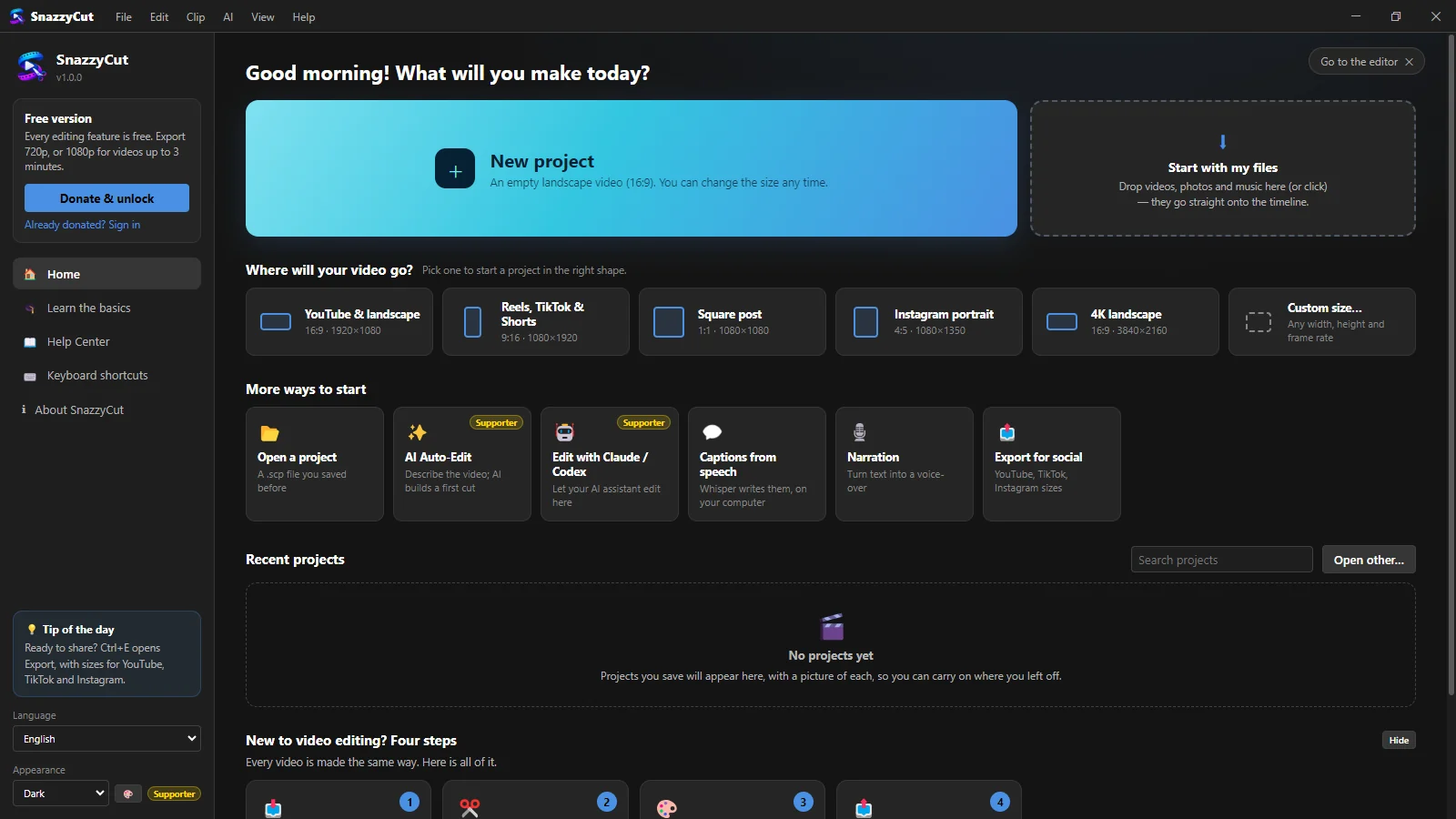
The Home screen is the first thing you see after SnazzyCut starts. From here you can start a project in the right shape for where your video is going, drop your files to get a first cut straight away, or carry on with a project you saved before.
 123456
- 1 New project — an empty landscape video (16:9). You can change its size later.
- 2 Start with my files — drop videos, photos and music here, or click to pick them.
- 3 Where will your video go? — a new project already in the right shape.
- 4 More ways to start — open a project, AI tools, narration and short how-tos.
- 5 Recent projects — with a picture of each, to carry on where you left off.
- 6 Your licence: the free version, or thanks if you are a Supporter.
Start a project in the right shape
Every video has a shape, and it is easiest to choose it before you start. Under Where will your video go? pick the place it will be watched:
| Choice | Shape | Use it for |
|---|---|---|
| YouTube & landscape | 16:9 · 1920×1080 | YouTube, a TV, a laptop screen |
| Reels, TikTok & Shorts | 9:16 · 1080×1920 | Phone videos held upright. SnazzyCut also switches to the Vertical workspace. |
| Square post | 1:1 · 1080×1080 | Feed posts |
| Instagram portrait | 4:5 · 1080×1350 | Instagram feed, taller than square |
| 4K landscape | 16:9 · 3840×2160 | High-resolution YouTube or TV |
| Custom size… | Any | Opens File › Project Settings to type a width, height and frame rate |
Not sure? Pick the big New project button. You can change the shape at any time from the size menu above the monitor, and your clips stay where they are.
Start with your files
The quickest way to a first cut: drag your videos, photos and music from Explorer onto the Home screen (or click Start with my files and pick them).
- SnazzyCut makes a new project in the shape of your first video or photo — upright footage gives a 9:16 project.
- Pictures go one after another on the main video track, in file-name order. Music and other sound go on the audio track.
- Press Space to play it. Then cut, trim and reorder — see Timeline basics.
Name your files in the order you want them (01 Arrival.mp4, 02 Beach.mp4…) and they land in that order.
Recent projects
Every project you open or save appears under Recent projects, with a picture of the edit, when you last used it, how long it is and its size. Click one to open it.
- Type in Search projects to find one by name.
- Hover a project and click ✕ to take it off the list. The file itself is not deleted.
- A project marked File not found was moved or deleted. Open it from its new place with Open other….
Learn the basics, tips and appearance
Below your projects, New to video editing? Four steps explains the whole job in four cards. You can hide them with Hide and bring them back with Learn the basics on the left.
📖 Help Center on the left opens this guide in your browser (also Help › Help Center (online) in the editor).
The left side also has a tip of the day, the Language and Appearance (colour theme) menus. Colour themes other than Dark are a Supporter feature: in the free version a Supporter label sits next to Appearance (see Colour themes).
Leaving and coming back
- Go to the editor (top right) or Esc leaves the Home screen with an empty project.
- To come back: File › Home Screen…, or click the SnazzyCut logo at the top left.
- Closing a project (✕ at the top right, or File › Close Project, Ctrl + W) also brings you back here. Click ✕ on the Home screen to quit SnazzyCut.
SnazzyCut always opens on the Home screen, unless you start it by double-clicking a project. To quit straight from the editor, choose File › Exit (Ctrl + Q).