
Edit with Claude or Codex (MCP)
Let your AI assistant — Claude Desktop, Claude Code or Codex — edit in SnazzyCut while you watch.
If you already use an AI assistant — Claude Desktop, Claude Code or Codex — you can let it edit in SnazzyCut. You chat with the assistant as usual; it looks at your footage, builds the edit on SnazzyCut's timeline, adds titles and transitions and exports, while you watch and undo anything. Supporter
What it is
SnazzyCut connects to the assistant through MCP (Model Context Protocol), a standard way for AI assistants to use tools in other programs. The assistant does the thinking with its own subscription or key — no API key in SnazzyCut, and nothing goes through SnazzyCut's AI providers.
| AI Auto-Edit | Claude / Codex | |
|---|---|---|
| Who plans the edit | The AI provider you set up in SnazzyCut | Your assistant, in its own chat window |
| Who pays | Your API key with the provider | Your assistant's own plan or key |
| How you ask | The dialog and the bar under the timeline | A conversation in the assistant |
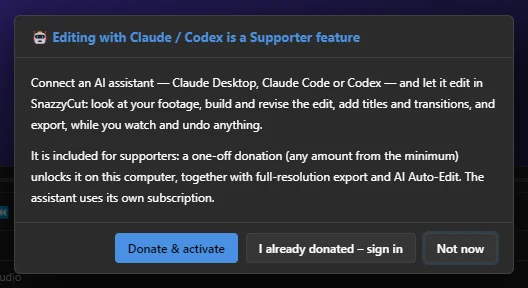
It is a Supporter feature. In the free version, AI › Connect Claude / Codex (MCP)… explains it and offers Donate & activate.
Switch it on
 12345
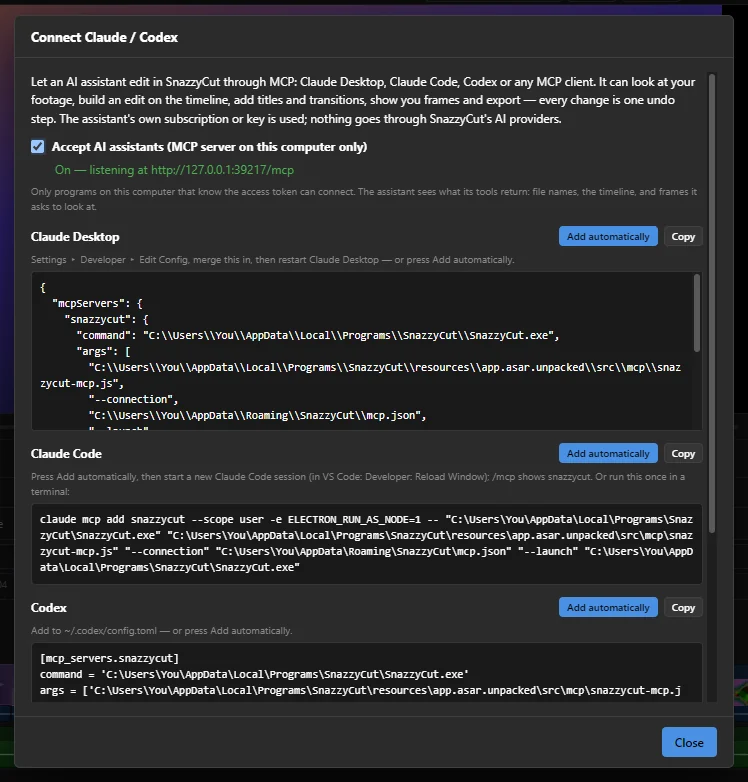
- 1 Accept AI assistants (MCP server on this computer only) — the switch. It is off until you turn it on.
- 2 Whether it is on, and which assistant connected last.
- 3 Claude Desktop — the setting for Claude's desktop app, with Add automatically and Copy.
- 4 Claude Code — the same for Claude Code.
- 5 Codex — the same for OpenAI's Codex.
- Choose AI › Connect Claude / Codex (MCP)…, or Edit with Claude / Codex on the Home screen.
- Tick Accept AI assistants (MCP server on this computer only). The line under it turns to On — listening at http://127.0.0.1:39217/mcp.
- Click Add automatically next to the assistant you use (see below).
- Restart the assistant as the message says. Done — you only do this once.
Add SnazzyCut to your assistant
Add automatically writes SnazzyCut into the assistant's own settings file. It keeps a backup copy of that file first (ending in .snazzycut-backup), changes only SnazzyCut's entry, and switches the server on if it was off.
| Assistant | After Add automatically |
|---|---|
| Claude Desktop | Quit Claude Desktop completely and open it again. SnazzyCut appears among its tools. |
| Claude Code | Start a new Claude Code session (in VS Code: Developer: Reload Window). /mcp then lists snazzycut. If it is missing, close Claude Code and press Add automatically again. |
| Codex | Start a new Codex session. |
Prefer to do it by hand? Copy copies the setting to paste yourself: into Claude Desktop under Settings ▸ Developer ▸ Edit Config, into ~/.codex/config.toml for Codex, or as a terminal command for Claude Code.
SnazzyCut does not need to be open first. When the assistant needs it, the setting starts SnazzyCut by itself (and waits for it to load). No extra programs need to be installed.
 123
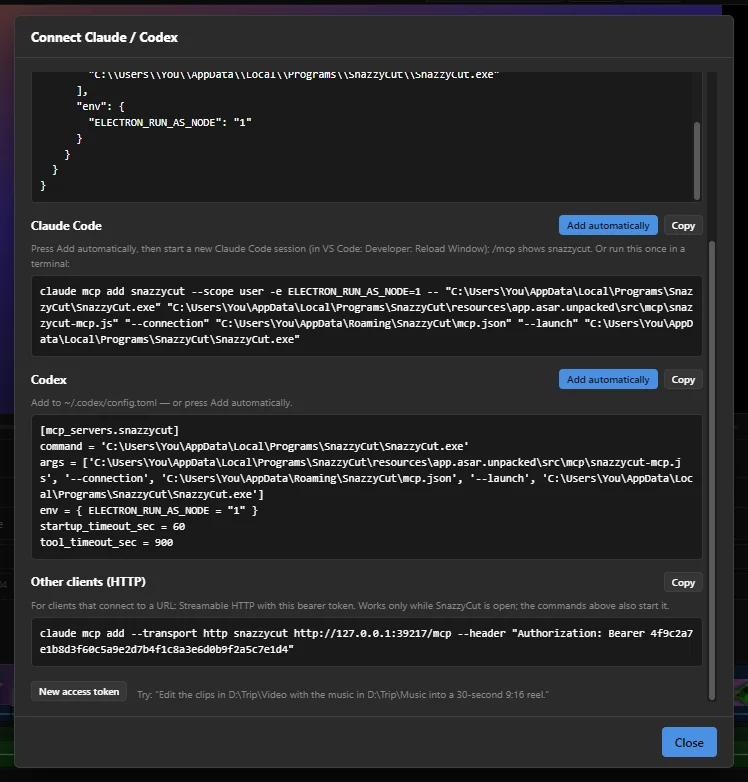
- 1 Other clients (HTTP) — for MCP programs that connect to an address instead. This works only while SnazzyCut is open.
- 2 New access token — makes a new token (see Privacy and security).
- 3 An example to try first.
What to ask
Open a chat in your assistant and say what you want, with the full paths to your folders. For example:
- "Edit the clips in D:\Trip\Video with the music in D:\Trip\Music into a 30-second 9:16 reel."
- "Look at the shots in D:\Trip\Video and tell me which ones are the best."
- "Add a title 'Day one' at the start, and a dissolve between the first two clips."
- "Show me the frame at 0:12. The horizon is crooked — fix it, or use another shot."
- "Make the music quieter and end the video on the sunset shot."
- "Save the project as D:\Trip\Reel.scp and export it to D:\Trip\Reel.mp4."
While it works, SnazzyCut's status bar shows what the assistant is doing (for example Claude: add_clip…), and the timeline changes in front of you.
What the assistant can do
- Look at your footage: read whole folders of video, photos and music (finding the shots, the beat of the music and, if asked, what is said), view the shots as contact sheets, and look at a frame of any file.
- Build a whole edit in one go — main track, overlays, titles, music, captions, transitions, framing and shape — and revise it later, keeping your own touches.
- Fine-tune: import files, place, trim, split, move and delete clips; add titles, transitions, effects and tracks; change colour, LUT, volume, position and speed; change the project's size and frame rate.
- Check its work: render a frame of the timeline to look at it.
- Undo and redo, save and open projects, and export the video (and check how far the export is).
Every change is one undo step, named "Assistant: …". Press Ctrl + Z in SnazzyCut to take back anything it did. You can also keep editing by hand between requests.
Edits always go to the main timeline. If the assistant opens another project or starts a new one, SnazzyCut asks about unsaved changes first, as usual.
Privacy and security
- The connection stays on your computer: SnazzyCut listens only on
127.0.0.1(this computer), and requests from web pages are refused. - Only programs that know the access token can connect. Add automatically sets this up for you.
- New access token replaces the token if you think someone else got it. Assistants added with Add automatically pick up the new one by themselves; a program set up with the HTTP address needs the new token pasted in.
- The assistant sees what its tools return: file names, the timeline, and the frames it asks to look at. Those become part of your conversation with the assistant, under that service's own terms.
- Untick Accept AI assistants to switch it off. Then Off — assistants cannot reach SnazzyCut.
Questions
Do I need an API key in AI Providers?
No. The assistant uses its own subscription. AI providers are only for AI Auto-Edit.
The assistant does not see SnazzyCut.
Check that the switch in AI › Connect Claude / Codex (MCP)… is on, press Add automatically again, and fully restart the assistant (for Claude Desktop: quit it, not just close the window).
My Supporter licence ended. What happens?
The assistant can still see the list of SnazzyCut's tools, but each request is answered with the reason and nothing is changed. When the licence is back, it works again at once.
Does it work with other assistants?
Any MCP program can connect. Programs that start tools as a command can use one of the settings shown; programs that connect to an address use Other clients (HTTP).