
Text and titles
Add text, choose a ready-made look, set font, colours, outline, shadow and animation, and place titles on the monitor.
Titles, names, captions and credits are all text clips. You make them in the Text panel, place them on the timeline like any other clip, and move them around right on the monitor.
Add a text
- Click the Text tab at the top of the left panel.
- Click + Add Text. A new text called "Your text here" appears in the list, marked ✎: it is a draft and not on the timeline yet.
- Type your words in Content, then pick the font, size and colours (see below). The monitor does not show a draft yet.
- Move the playhead to where the text should appear, then click 📝 Add to Timeline. The text lands on the top video track at the playhead, 5 seconds long. If that spot is taken, it goes on another titles track with room, or on a new track on top, so it never covers another clip on its track.
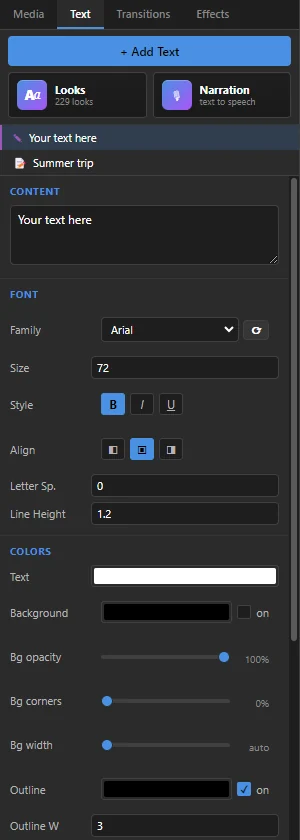 12345
- 1 + Add Text — starts a new text.
- 2 Looks — over 200 ready-made styles and title layouts (see Ready-made looks). Narration beside it turns typed text into speech (see Narration).
- 3 The list — ✎ drafts, and 📝 texts that are on the timeline. Click one to work on it.
- 4 Content — the words. Press Enter for a new line.
- 5 Font — Family lists the fonts installed on your computer (click ⟳ after installing a new one), then Size, Style (bold, italic, underline), Align, Letter Sp. (space between letters) and Line Height.
Colours, outline, shadow and animation
Further down the Text panel are the colours and the way the text moves.
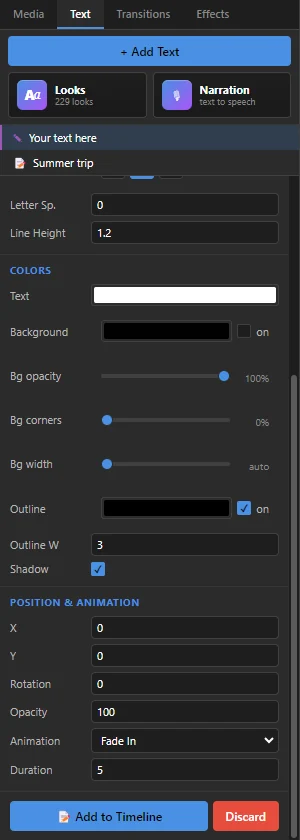 12345678
- 1 Text — the colour of the letters. Click the colour box to pick one.
- 2 Background — tick on for a box behind the words, which keeps them readable on busy footage. Bg opacity makes the box see-through, Bg corners rounds it, and Bg width sets a minimum width (auto fits the words).
- 3 Outline — a line around each letter; Outline W is its thickness.
- 4 Shadow — a soft shadow under the letters.
- 5 X and Y — the position. 0 and 0 is the middle of the frame; a bigger Y moves the text down. Rotation and Opacity are just below.
- 6 Animation — how the text comes in and goes out: fades, slides, Typewriter, Pop, Bounce and more. Roll Up and Crawl Left scroll across the whole clip, for credits.
- 7 Duration — how many seconds the text stays on screen.
- 8 Add to Timeline places the draft; Discard throws it away.
Ready-made looks
Click Looks in the Text panel to choose from ready-made styles instead of setting everything yourself.
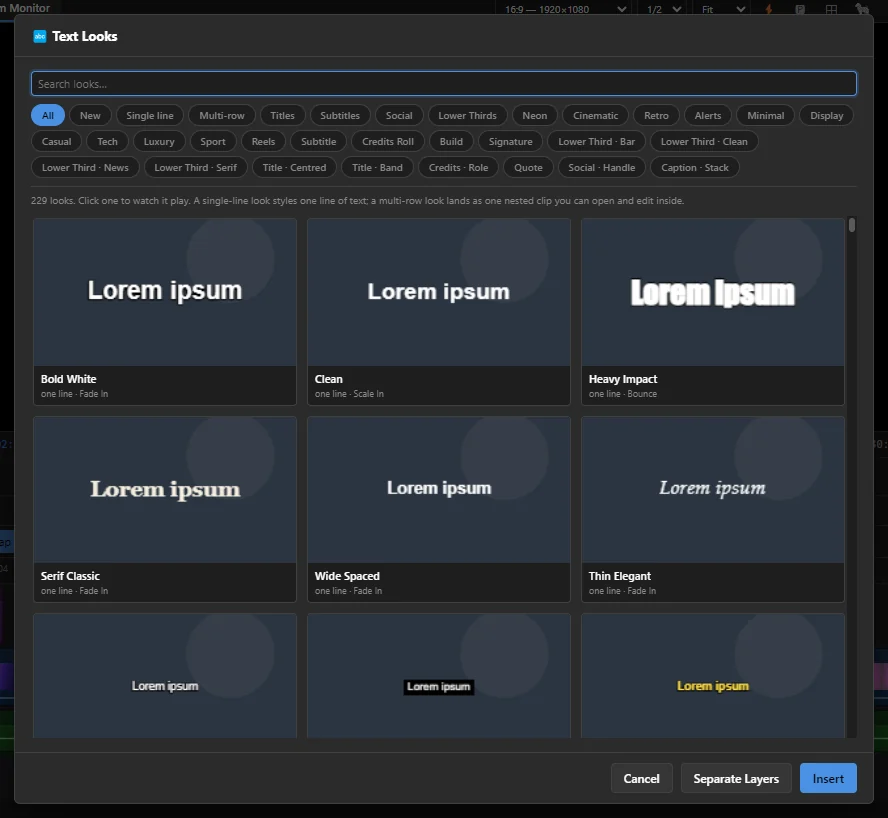 1234
- 1 Search looks… — find a look by name.
- 2 Groups — Single line, Multi-row, and families such as titles, subtitles, social, lower thirds, neon and credits.
- 3 Cards — click a card to watch its animation play. Double-click it to use it straight away.
- 4 Buttons — Insert uses the selected look. Separate Layers is for multi-row looks (see below).
- A single-line look styles one line of text. It becomes a new draft in the Text panel (or restyles the draft you have open): type your words, then click 📝 Add to Timeline.
- A multi-row look, such as a lower third with a name and a job title, goes straight onto the timeline at the playhead, as one clip. Double-click that clip to open it and change the words in each row; the bar above the timeline takes you back out. Separate Layers puts each row on its own track instead.
- If a title on the timeline is selected, the button reads Apply to Clip: a single-line look changes that title's style and keeps its words. A multi-row look is not applied to it: it is added as a new nested clip at the playhead, and the selected title stays as it is. (Separate Layers is not offered then.)
Change a title on the timeline
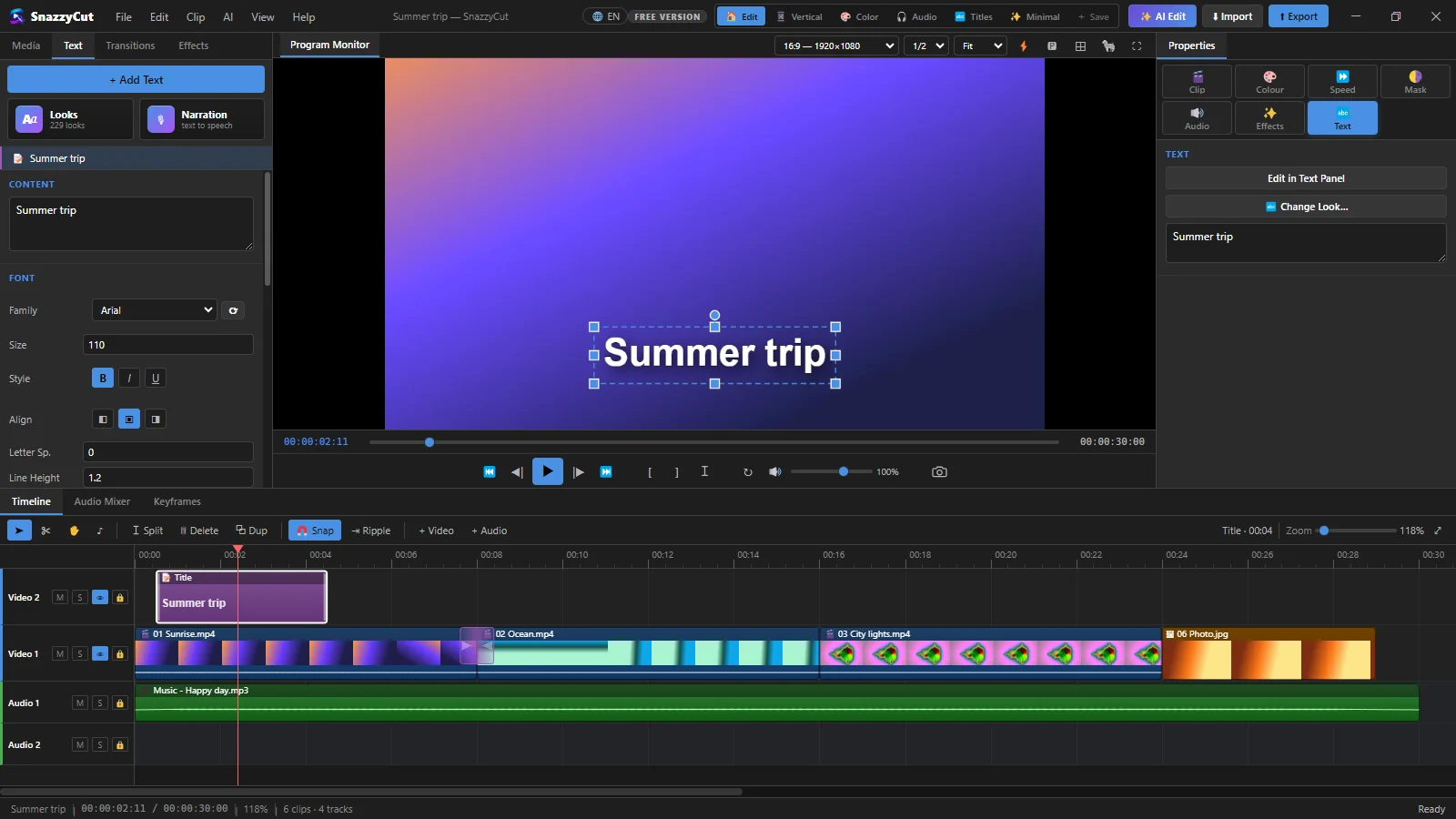 1234
- 1 Click the title clip on the timeline (or its 📝 row in the Text list). Its settings open in the Text panel and every change shows at once. Click ✓ Done when you have finished; Delete Clip removes it.
- 2 The monitor — the selected title has a box with handles (see Move it on the monitor).
- 3 The Text list — the title is highlighted.
- 4 Properties › Text — Edit in Text Panel, 🔤 Change Look… and a box for changing the words.
To make a title stay longer or shorter, drag its edges on the timeline or change its Duration. You can also right-click it › Change Look….
Move it on the monitor
- Click the text on the monitor to select it, then drag it where you want it. It snaps to the middle and the edges of the frame (a pink guide line shows); hold Alt to place it freely.
- Drag a corner handle to make it bigger or smaller. Ctrl while dragging keeps the middle in place.
- Drag the round dot above the box to rotate it; hold Shift to turn in 15° steps.
Click ⊞ (Safe margins) above the monitor to show guides 90% and 80% of the way to the edges. Keep text inside them so phones and TVs do not cut it off.
Titles can fade or wipe in and out with a transition, like any clip (see Transitions). To animate a title your own way, use Keyframes.