
Narration (text to speech)
Type a script and get a spoken voice-over on the timeline, made on your computer.
Narration turns text you type into a spoken voice-over. SnazzyCut makes the sound file on your computer with the Kokoro voice model, puts it in the media bin and — if you like — straight onto the timeline. It is free, and nothing is uploaded.
Open it in any of these ways:
- AI › Narration (Text to Speech)…
- The Narration button at the top of the Text panel.
- Narration on the Home screen (it starts a new project first).
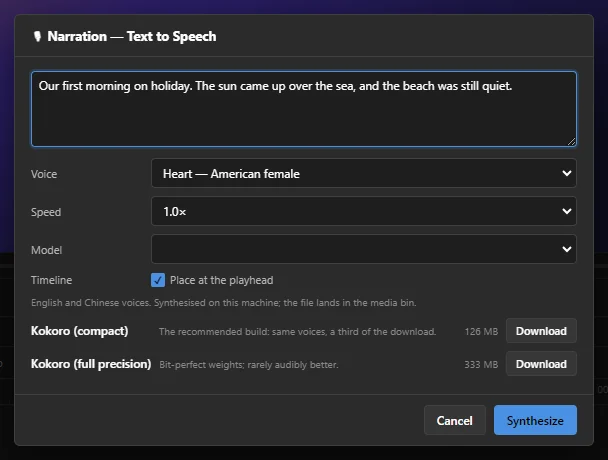 1234567
- 1 The text — type or paste what the voice should say.
- 2 Voice — 36 voices: American and British English, and Chinese, each female or male. Heart — American female is chosen to start with.
- 3 Speed — from 0.8× (slower) to 1.4× (faster). 1.0× is normal speed.
- 4 Model — the voice model to use. Only a downloaded one can be picked.
- 5 Place at the playhead — also put the narration on the timeline, where the playhead is.
- 6 The voice models, with their size and a Download button.
- 7 Synthesize — makes the voice-over.
Download the voice model the first time
The voice model is not part of the installer. Download it once; SnazzyCut keeps it in its data folder for every project after that. This download is the only step that needs the internet.
| Model | Download | What it is like |
|---|---|---|
| Kokoro (compact) | 126 MB | The recommended build: same voices, a third of the download. |
| Kokoro (full precision) | 333 MB | Bit-perfect weights; rarely audibly better. |
Click Download beside Kokoro (compact) and wait until its row says ready. Until then the Model list looks empty — that is normal.
Make a voice-over
- Move the playhead to where the narration should start.
- Open Narration and type your text.
- Pick a Voice and a Speed.
- Leave Place at the playhead ticked, and click Synthesize.
- The status bar says Synthesizing… and then Narration ready. Press Space to listen.
The voices are English and Chinese voices, so write the text in English or Chinese.
Make long narration in a few pieces — one per scene. Each piece is its own clip, so you can move it to fit the pictures without cutting a long file.
The result
- The voice-over is a WAV sound file. It appears in the media bin, like a file you imported.
- With Place at the playhead ticked, it also goes on an audio track at the playhead — the first audio track that is free there, or a new audio track if none is.
- From here it is an ordinary audio clip: trim it, move it, and change its volume or fades (see Sound and music).
Where the file is kept
If the project is saved, the narration goes into a folder beside the project file, named after the project with _narration at the end. So it travels with the project when you copy the folder. For a project that was never saved, it goes into a narration folder in SnazzyCut's data folder.
Save the project before you make narration, so the sound files end up next to it.
Questions
Is my text sent anywhere?
No. The voice is made on this computer; only the one-time model download uses the internet.
It says "Nothing to say — the text box is empty".
Type the text before clicking Synthesize.
It says "Download the voice model first".
No voice model is downloaded yet. Click Download beside Kokoro (compact) in the dialog, wait for ready, then try again.
How do I find the right voice?
Make one short sentence with a few different voices and listen. Delete the takes you do not want from the timeline and the media bin.